
# How to set up Mi Ads Pixel with Google Tag Manager in Mi Ads Assets Center?
Google Tag Manager is a tag management system that allows you to set up and manage tags on your site without changing your website's code. You can install Mi Ads Pixel in your Google Tag Manager account.
# Before you begin
Before you install Mi Ads Pixel in your Google Tag Manager account, you need to:
- Create a Google Tag Manager account and container,install Google Tag Manager code on your website.
- Familiarize yourself with Google Tag Manager concepts like tags, triggers, and variables.
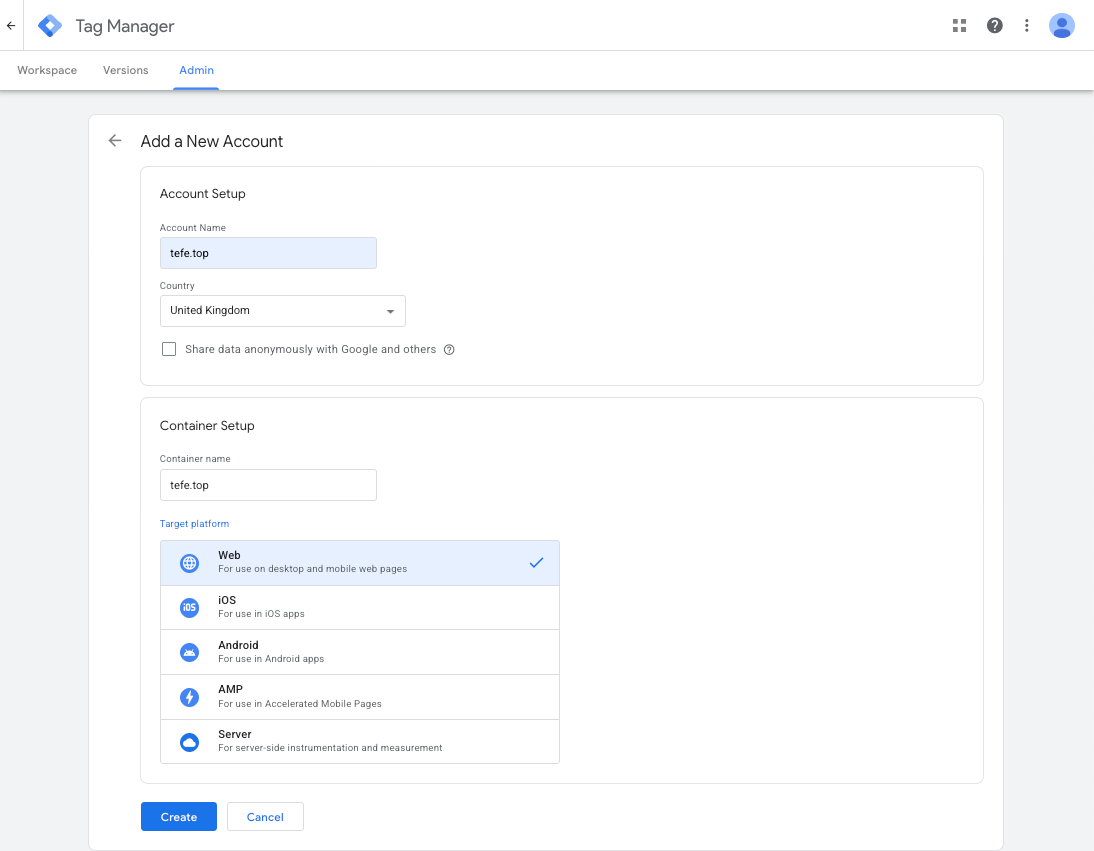
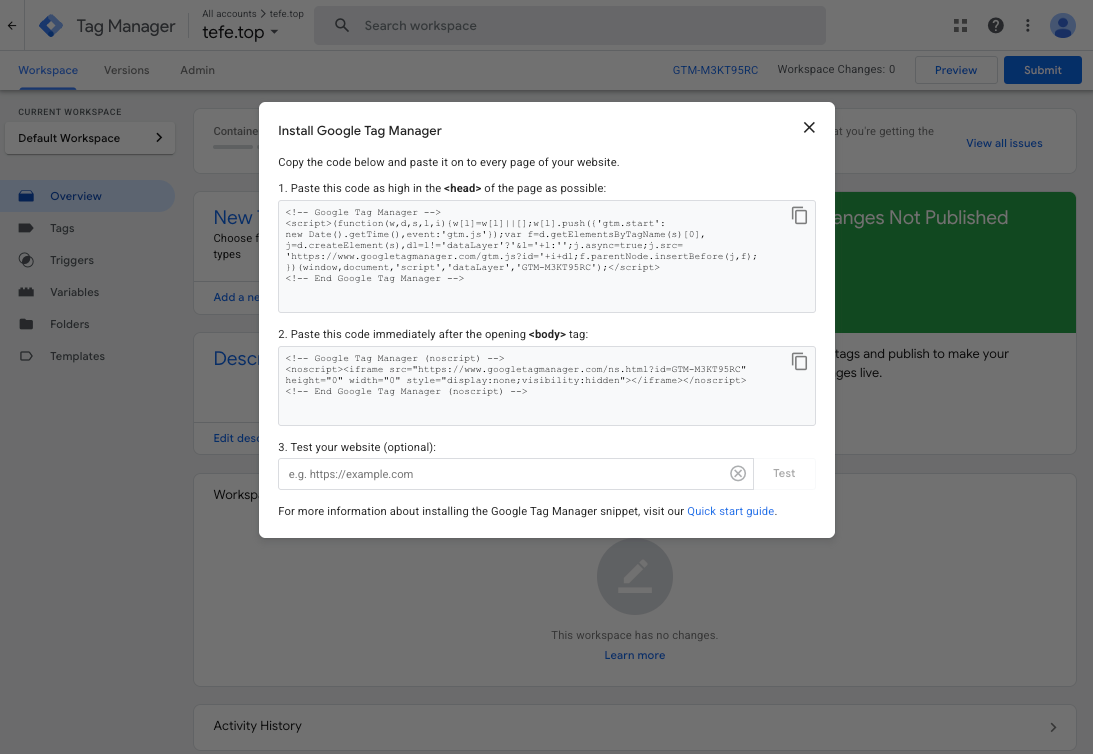
# How to set up Mi Ads Pixel in Google Tag Manager
To install Mi Ads Pixel in your Google Tag Manager account:
- Login to your Mi Ads account and copy your Mi Ads Pixel Base code from Assets Center.
- Login to your Google Tag Manager account.
- Click Tags.
- Click New.
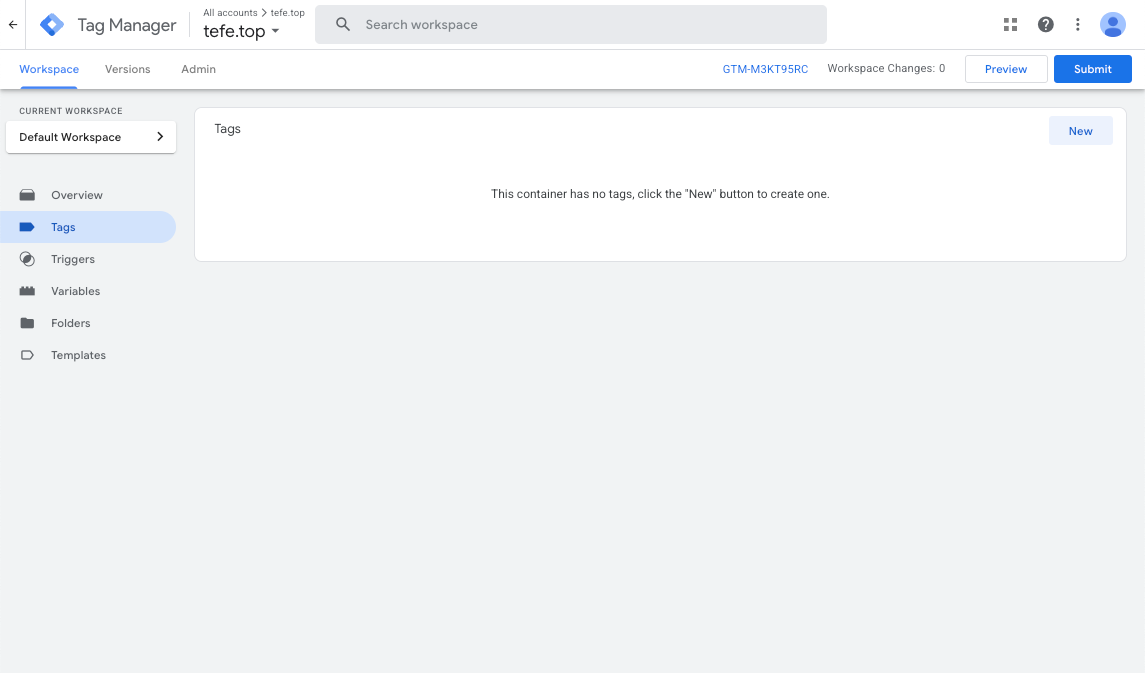
- Name your tag.
- Click Tag Configuration.
- Choose Custom HTML(template coming soon).
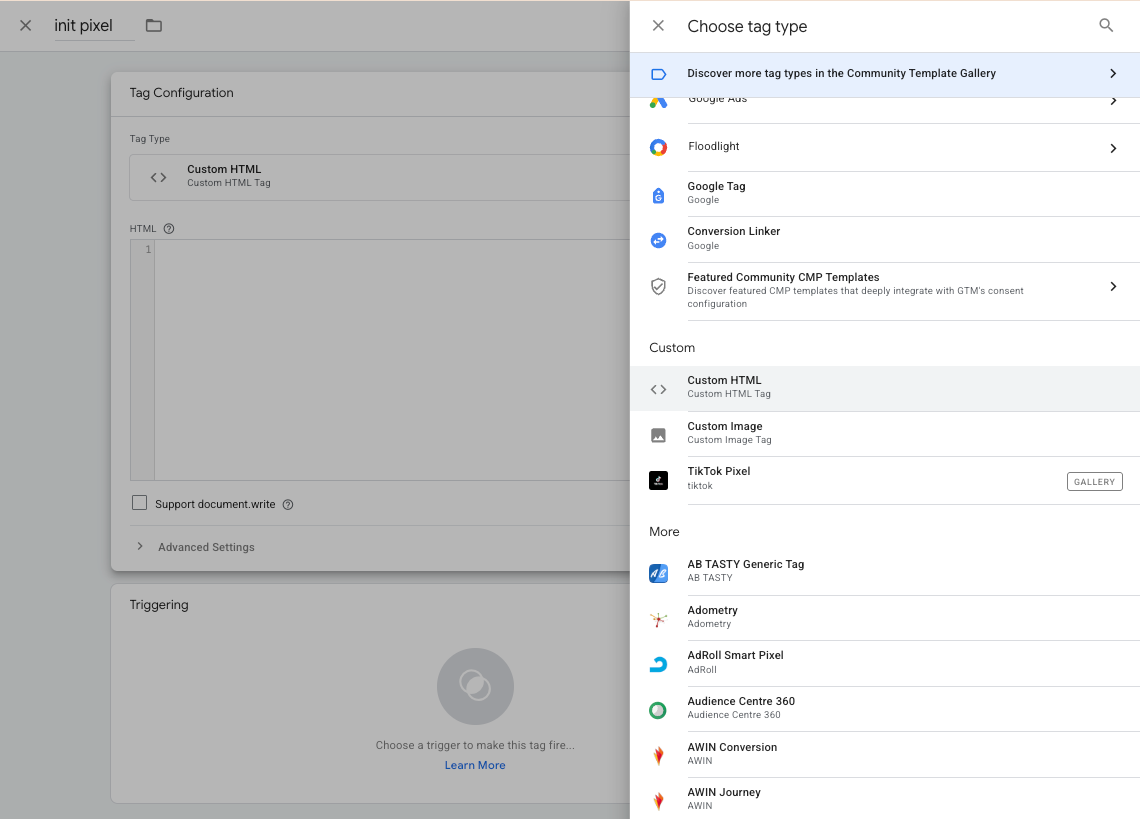
- Paste your Mi Ads Pixel Base Code in the HTML field.
- Click Triggering and set the trigger to Initialization - All Pages.

After setting up your Google Tag Manager, verify your Mi Ads Pixel set up and learn how to create Mi Ads Event Tags.
# How to create Mi Ads Event Tags with Google Tag Manager
To create Mi Ads Event Tags:
- Go to your Workspace in Google Tag Manager.
- Click Tags.
- Click New.
- Click Tag Configuration.
- Choose Custom HTML.
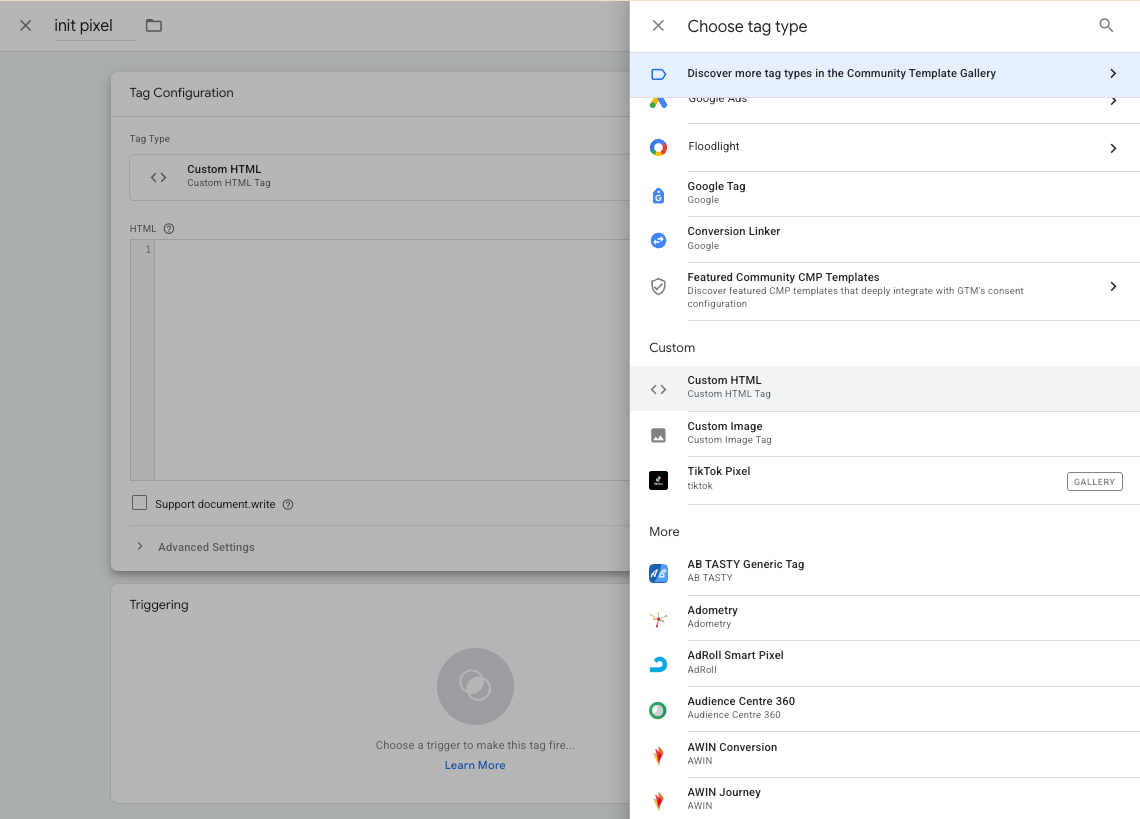
- Copy your Mi Ads Event Tag code from Assets Center and paste in the HTML field.
- Choose or create a proper Trigger to make this tag fire.
- Save your tag.
Now you can track the chosen events on your website with Google Tag Manager.