# Step-by-step guides for MMP and partner integrations.
# 1. The list of in-app events that MiAds recommends to be postbacked
# Generic Events
| Event Classification | Event name | Meaning of the event | Notes |
| Standard Events | AD_REVENUE | IAA advertising revenue | Mandatory to return! |
| PURCHASE | Any purchase | Mandatory to return! | |
| FIRST_PURCHASE | First-time purchase | Mandatory to return! | |
| APP_OPEN | App open | Mandatory to return! | |
| REGISTRATION | User registration | Mandatory to return! | |
| LOGIN | User login | Mandatory to return! | |
| Custom Events | CUSTOMIZE1 | These can represent any advertiser-authorized custom events. | |
| CUSTOMIZE2 | |||
| CUSTOMIZE3 |
# Industry-Specific Events
| Industry classification | Event name | Meaning of the event | Notes |
| Game industry | AD_REVENUE | IAA advertising revenue | Mandatory to return! |
| PURCHASE values&revenue | Any purchase | Mandatory to return! | |
| APP_OPEN | App open | Mandatory to return! | |
| REGISTRATION | User registration | Mandatory to return! | |
| CREATE_ROLE | Create role | ||
| TUTORIAL_COMPLETION | Complete tutorial | ||
| ACHIEVEMENT_UNLOCKED | Unlock achievement | ||
| LEVEL_ACHIEVED | Level achieved | ||
| E-commerce industry | PURCHASE 及 values&revenue | Any purchase | Mandatory to return! |
| REGISTRATION | User registration | Mandatory to return! | |
| LOGIN | User login | Mandatory to return! | |
| ADD_TO_CART | Add to cart | ||
| ADD_TO_WISHLIST | Add to wishlist | ||
| ADD_PAYMENT_INFO | Add payment information | ||
| Financial industry | LOAN_DISBURSAL | Loan disbursal | |
| FIRST_TRADE | First trade | Mandatory to return! | |
| FIRST_DEPOSIT | First deposit | Mandatory to return! | |
| REGISTRATION | User registration | Mandatory to return! | |
| LOAN_CREDIT | Loan credit assessment | ||
| LOAN_APPROVAL | Loan approval | ||
| Social, video, music and other industries | SUBSCRIBE | Subscription |
# 2. Appsflyer
# Step 1: Log in and select your app
Log into your AppsFlyer account. On the dashboard, type your app’s name in the search bar and click on the relevant app to enter its configuration page.

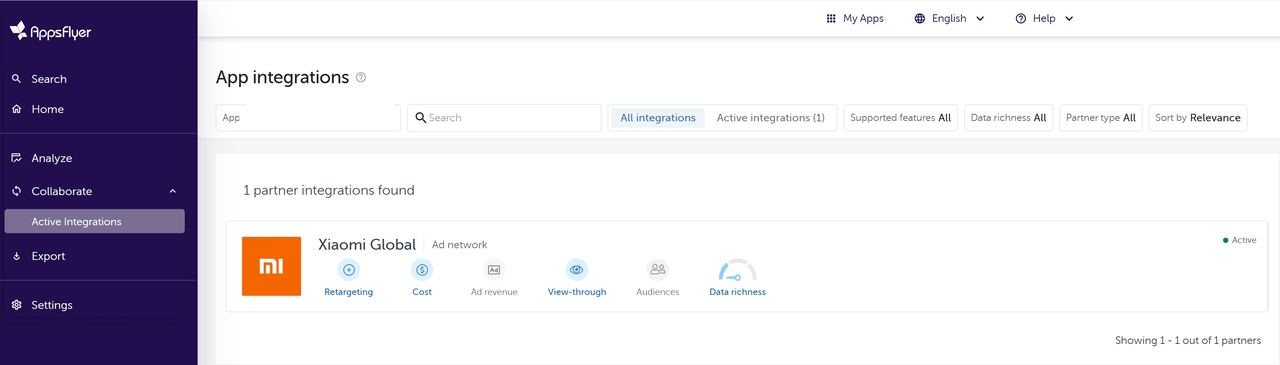
# Step 2: Locate and Add Xiaomi Global to Configure Postbacks
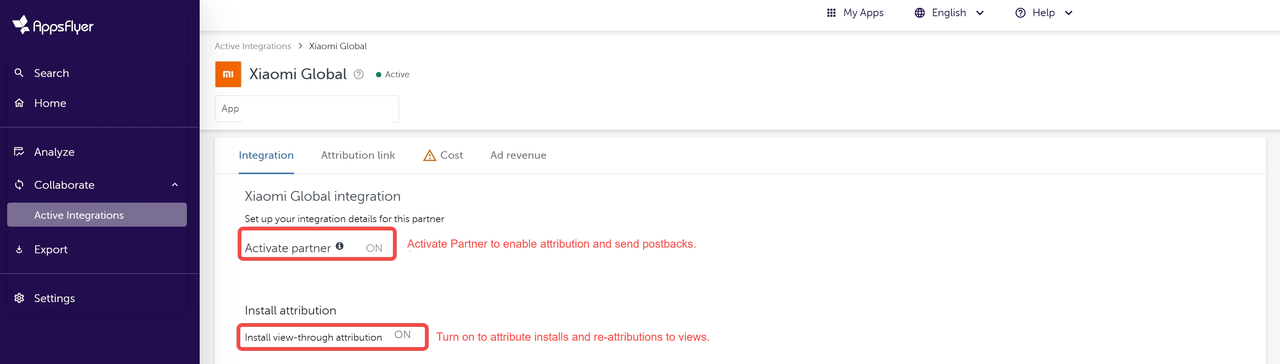
# Step 3: Activate Xiaomi Global as a Partner
- Toggle the Activate Partner switch to ON to begin sending postback data to Xiaomi Global. Make sure the Install view-through attribution switch is also turned ON. Then click Save at the bottom right corner.
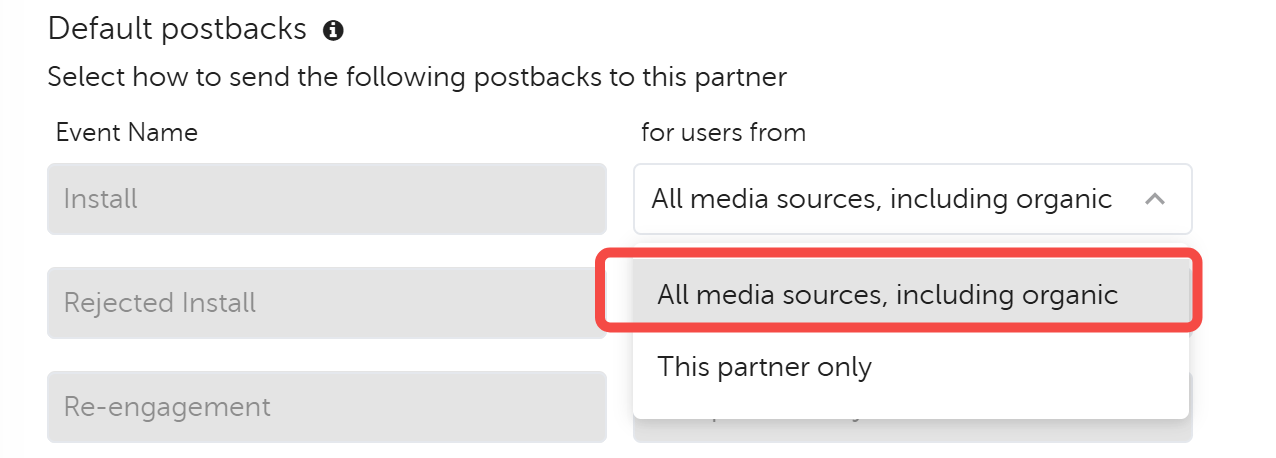
- In the Default Postbacks section, select All media sources, including organic from the dropdown menu for each event. This setting ensures that Xiaomi Global receives all data shared: attributed, unattributed, and organic.
# Step 4: Enable In-app Event Postbacks and Configure Postback Window
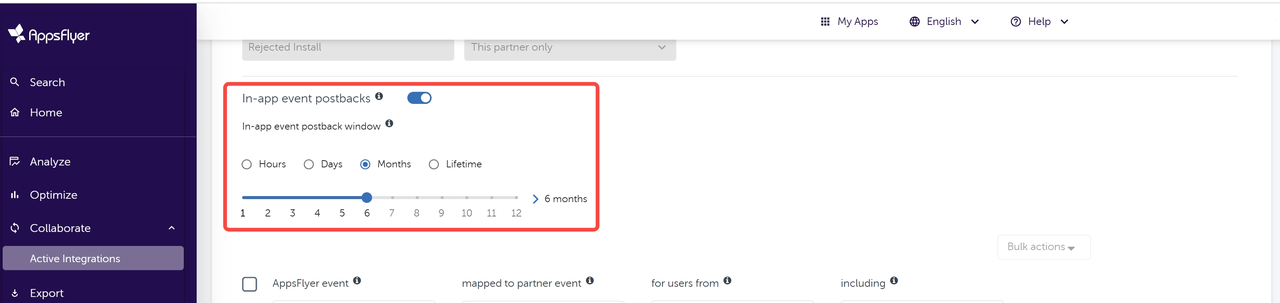
Ensure the In-app Event Postbacks toggle is turned ON to allow Xiaomi Global to receive data.
You must also configure the In-app Event Window, which determines how long after a user installs, re-attributions, or re-engages with the app their in-app events will be sent to Xiaomi Global. This setting directly impacts how effectively Xiaomi Global can attribute and optimize campaign performance based on user behavior.
We strongly recommend selecting Lifetime as the postback window. This ensures that all relevant in-app events—regardless of when they occur—are continuously transmitted to Xiaomi Global. This helps Xiaomi Global better understand user behavior and improve campaign performance over time.
# Step 5: In-app event postback configuration
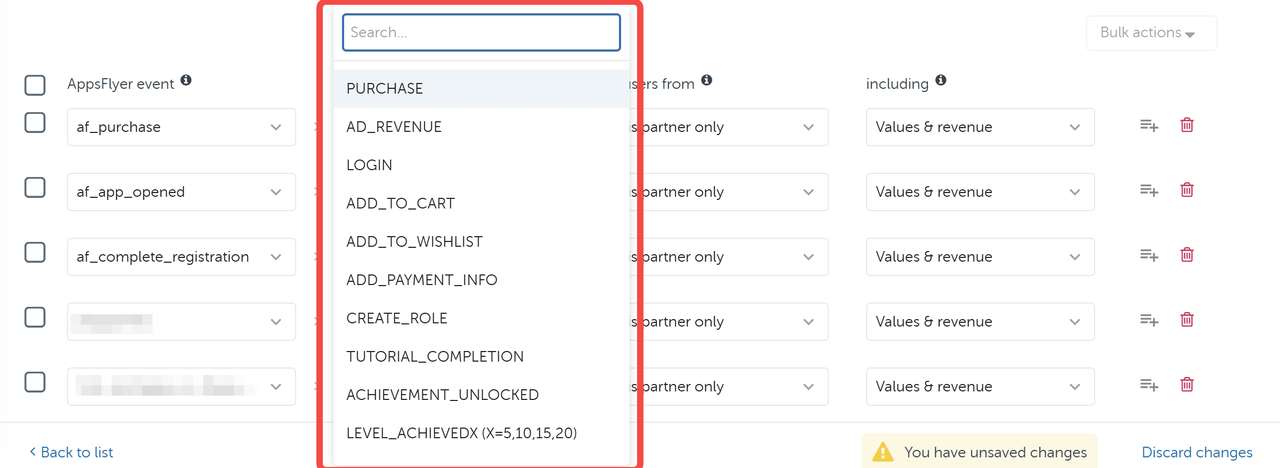
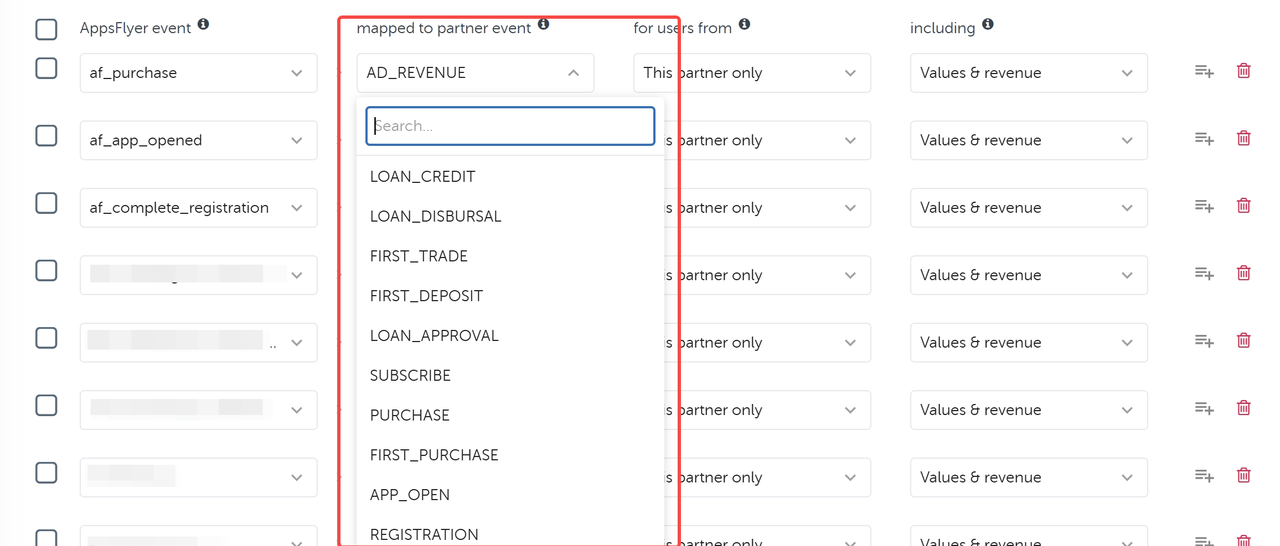
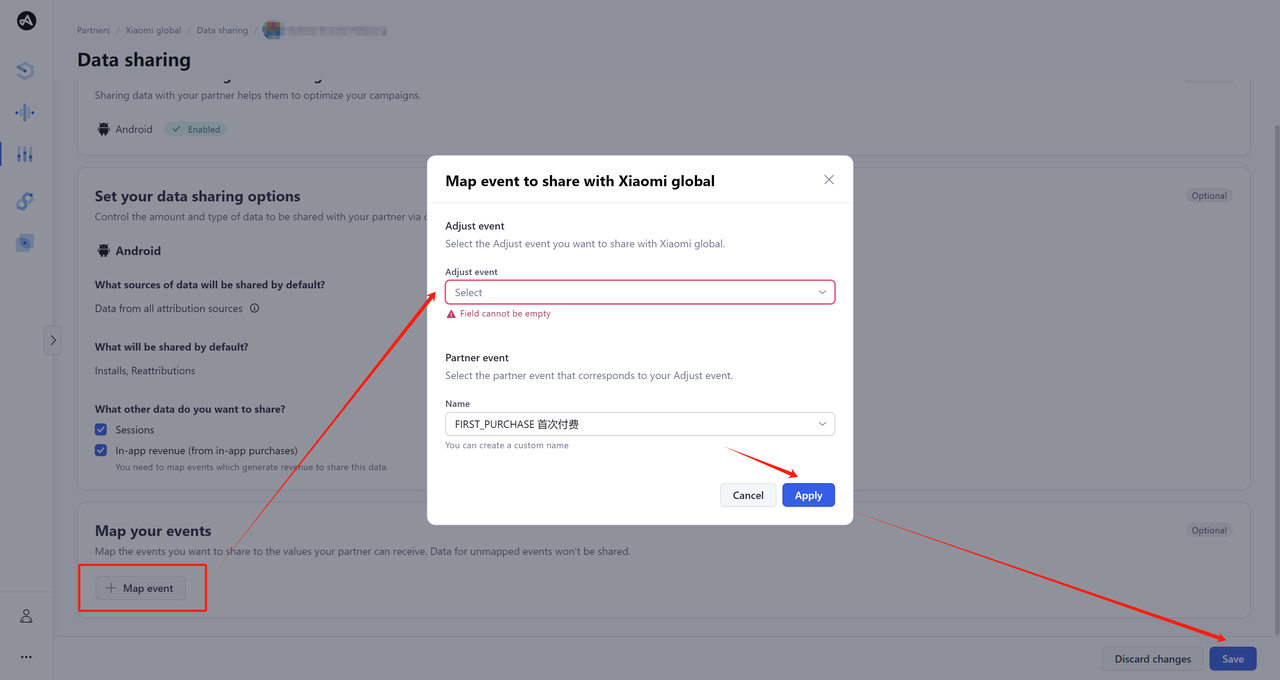
Simply check the relevant boxes in the dropdown list for the events you wish to map to Xiaomi Global. A total of 22 events are available, including 3 customizable events.
Note: If you have previously configured events, some of them may be marked as “legacy” in the dropdown. These legacy events can still be replaced with standard events. Once replaced, Xiaomi Global will begin receiving postbacks from the newly selected events starting from the date of updated.
# Step 6: Ad revenue callback configuration
Enable the AD_REVENUE postback to support Xiaomi in optimizing your IAA ROAS performance. To achieve the best optimization results, we recommend sending revenue data from all media sources, not just Xiaomi-attributed traffic. For detailed revenue configuration, refer to: support.appsflyer.com. After completing all settings, click Save Integration.

# 3. Adjust
# Step 1: Select partner - Xiaomi global
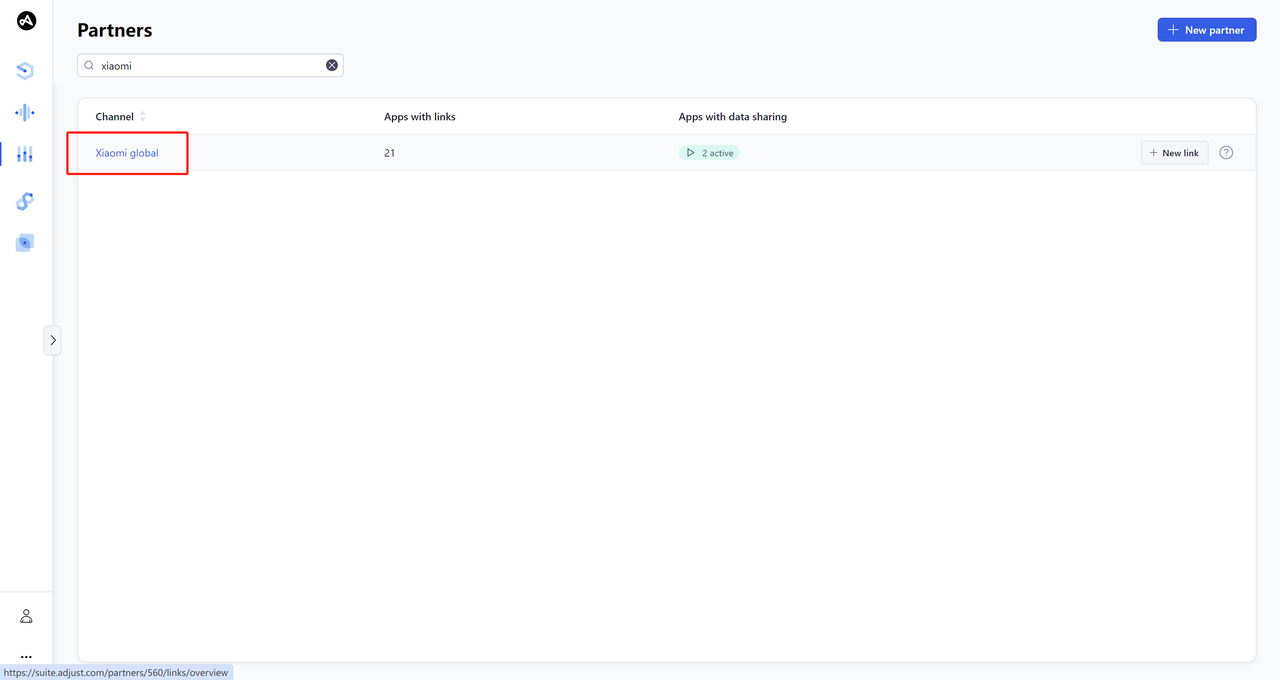
Sign in to Adjust. On the start page, click New ad network under Campaign Lab. Type "Xiaomi Global" in the search bar and click Xiaomi Global when it appears. Click Next to proceed to the next step.
# Step 2: Select your app
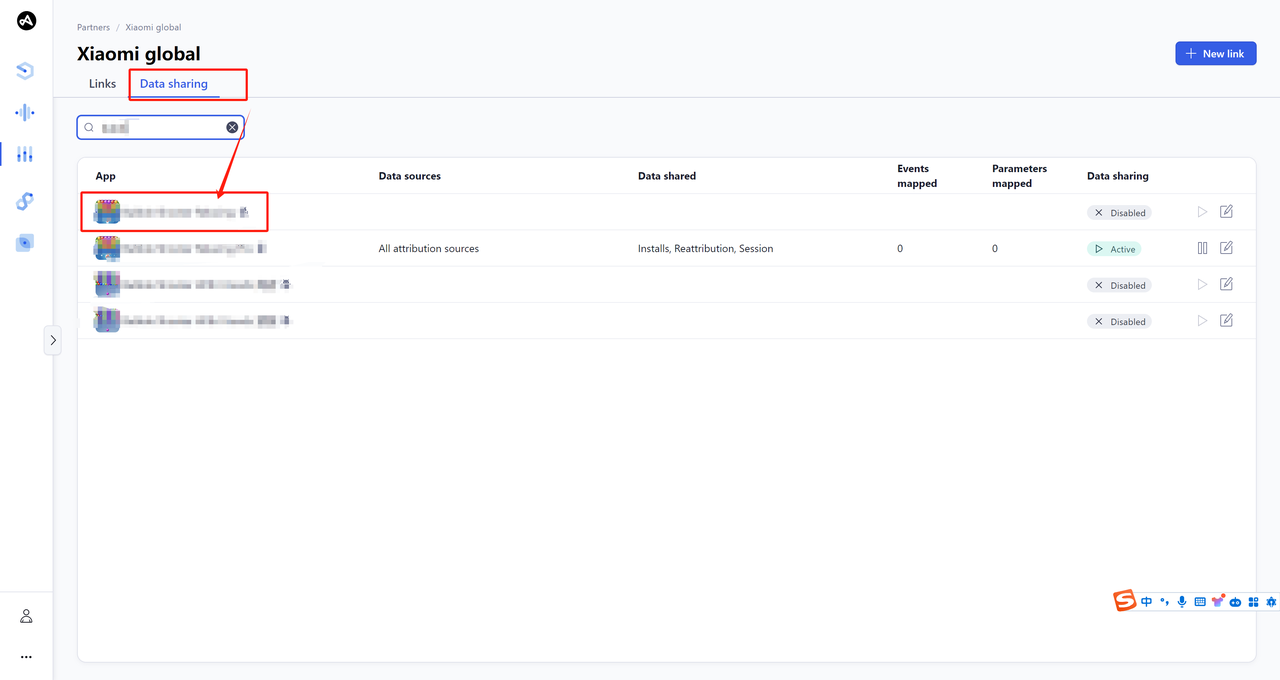
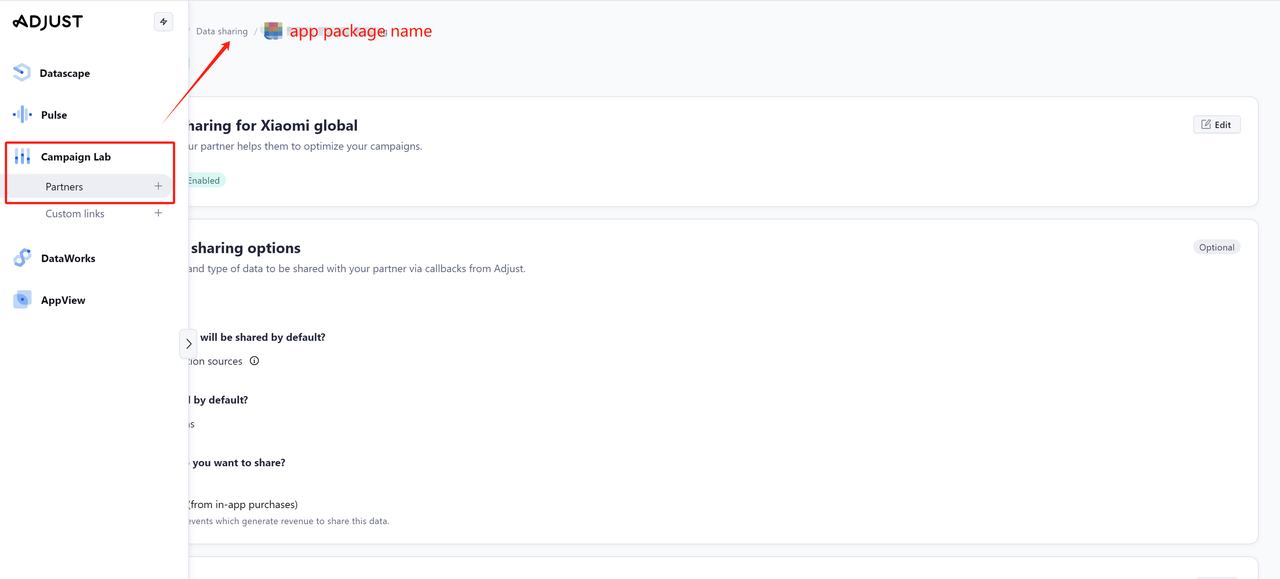
Select 【Data sharing】, and from the list of options provided, select the app to which you want to set up data transmission. Click Next to proceed to the next step.
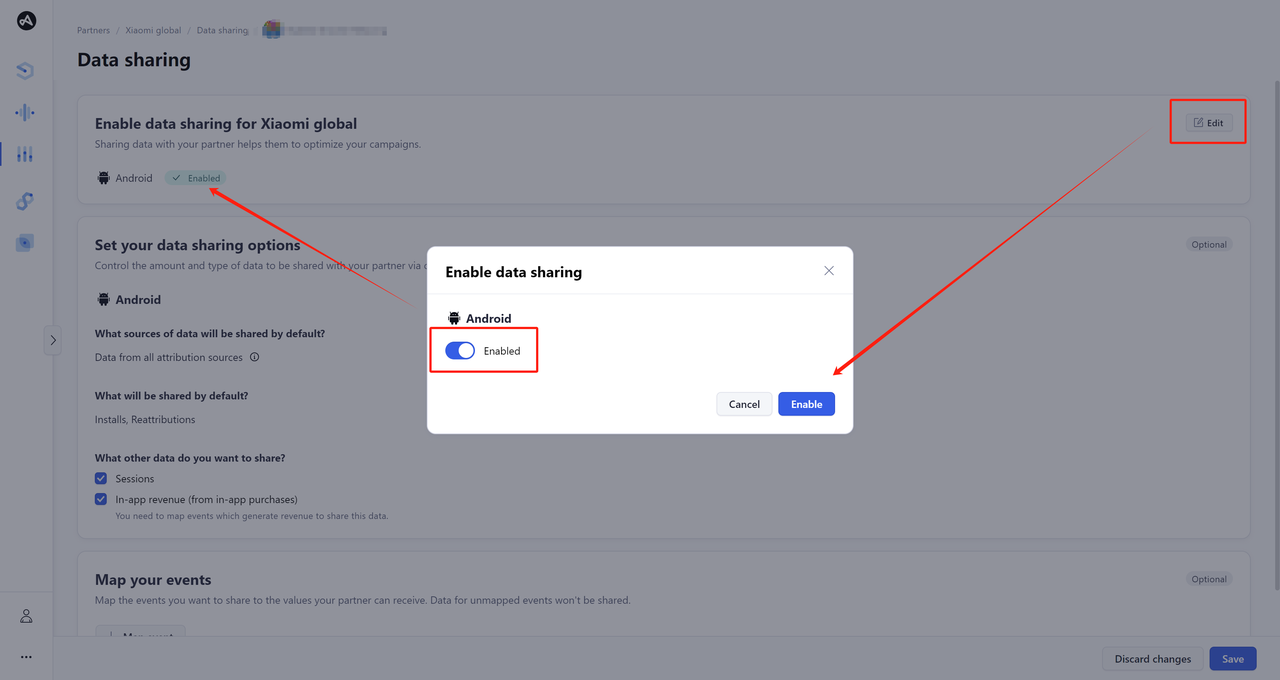
# Step 3: Make sure Android Data is Enabled
# Step 4: In-app event postback configuration
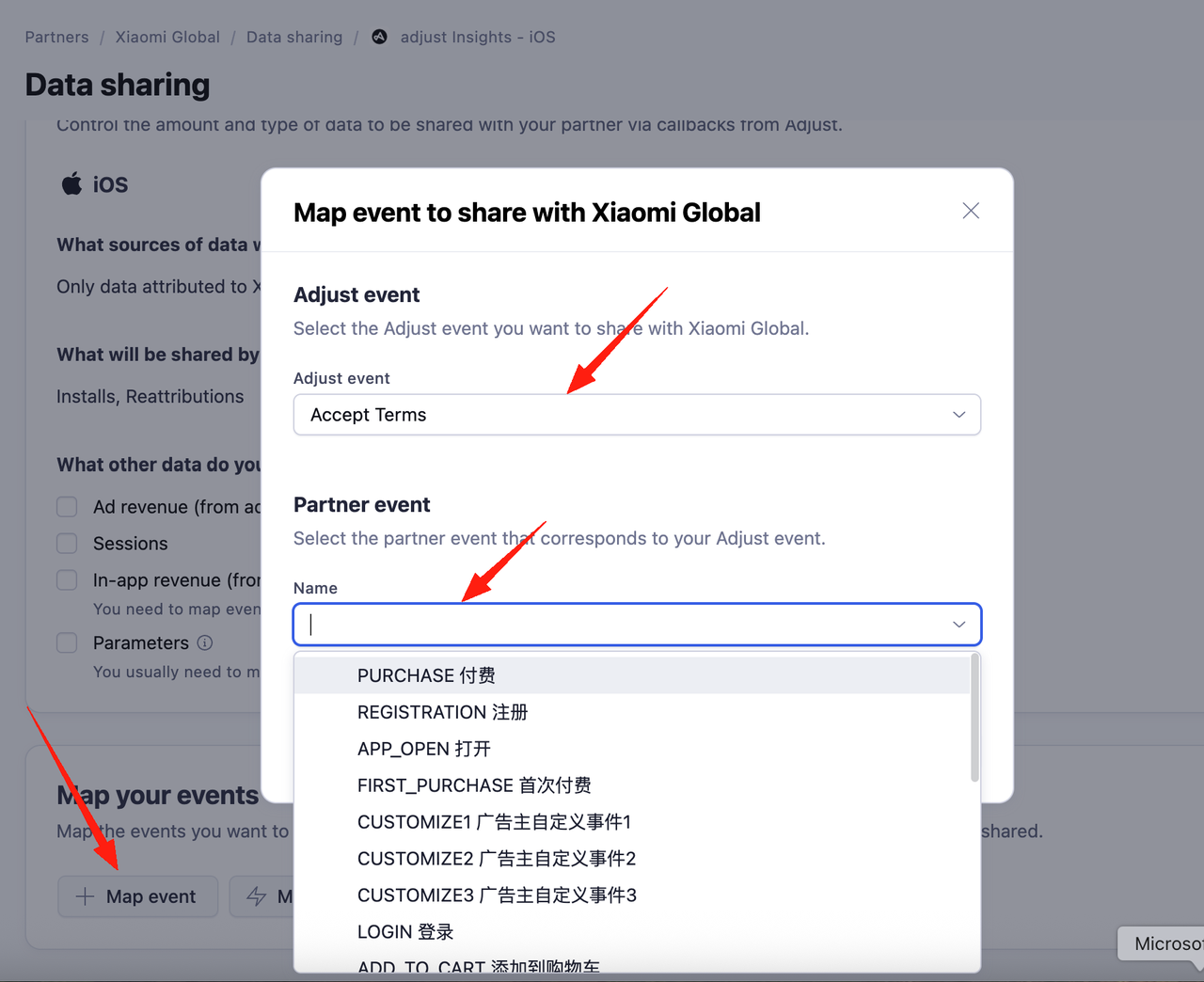
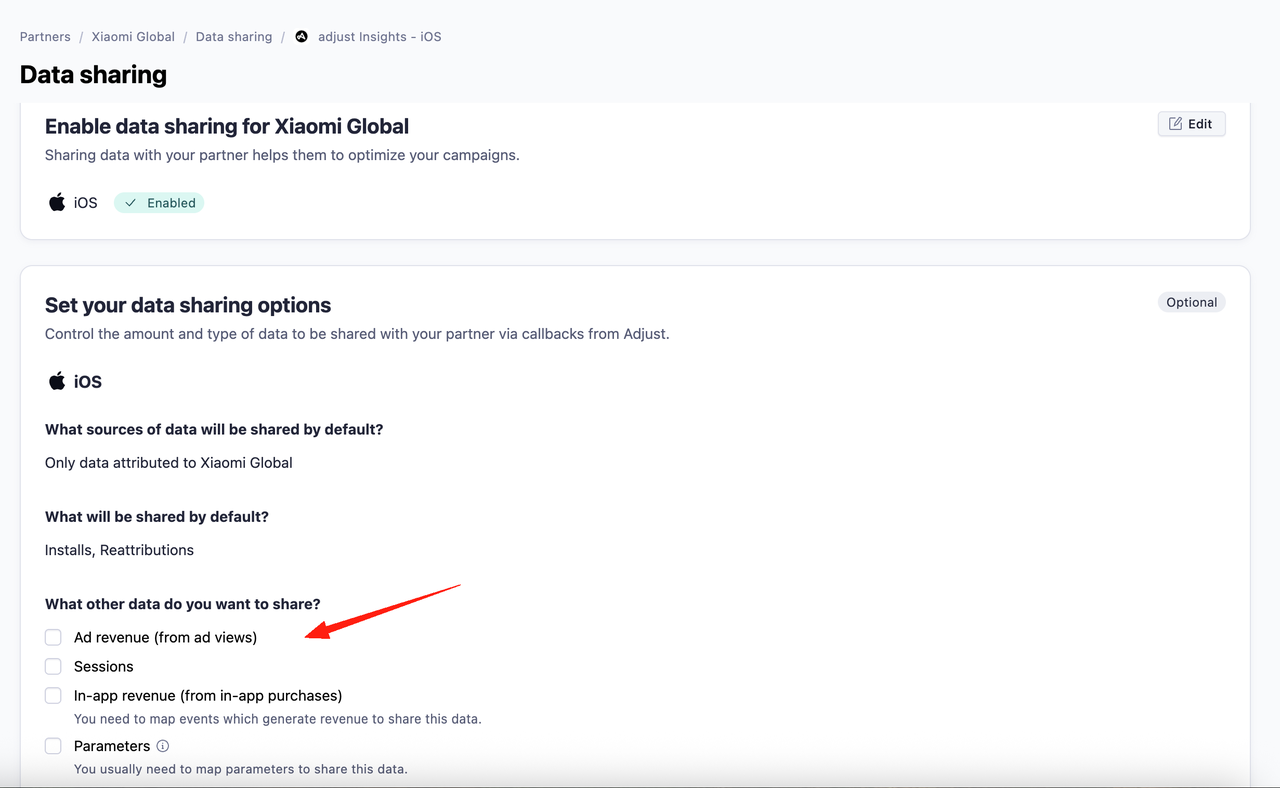
# Step 5: Ad revenue callback configuration
Enable revenue data feedback to support Xiaomi in optimizing your ROAS.
# 4. Tenjin
# Step 1: Campaign setup
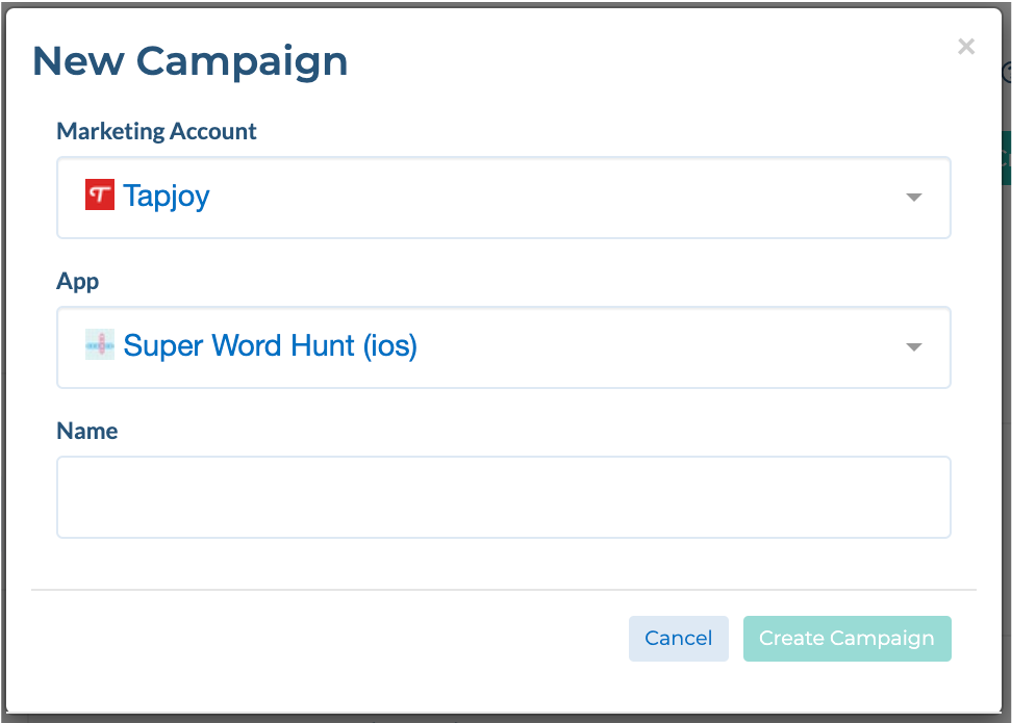
- To create a campaign, go to the CONFIGURE -> Campaigns tab in the dashboard and click Create Campaign.

- Enter the ad network you want to advertise on, the app you want to advertise, and the name of the campaign. Before this make sure you add your app and your ad network to the dashboard.
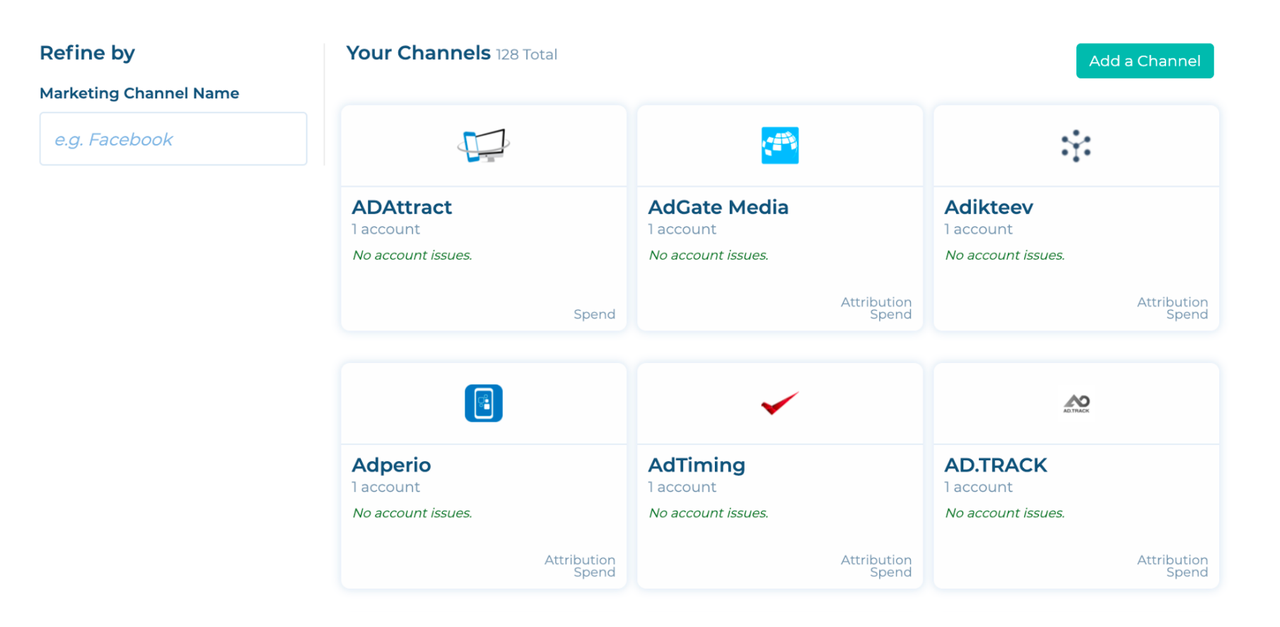
# Step 2: Add attributing channels
On the CONFIGURE -> Channels page of the panel, click "Add a Channel", then enter "xiaomi" and the Xiaomi channel will appear automatically.
# Step 3: Ad revenue callback configuration
- First, select the app you want to configure in CONFIGURE -> Apps and click + New Callback.
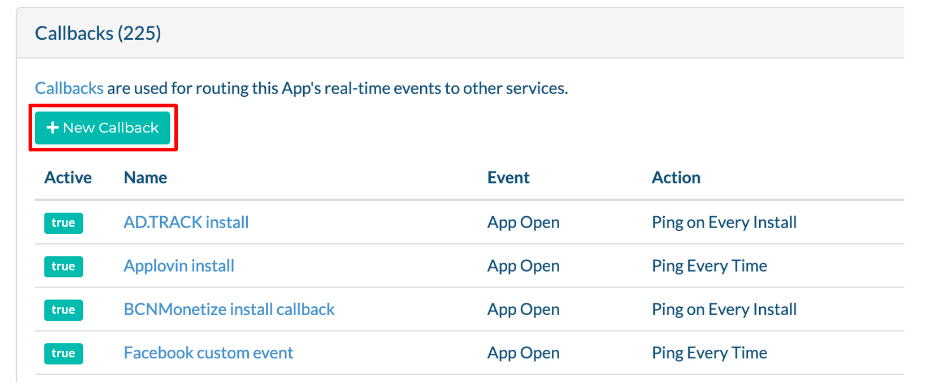
- Filter the ad delivery channel through the upper left corner, select the corresponding callback to send to that ad delivery channel, and choose the corresponding callback. In this way, all activations will be instantly callback to the ad delivery channel.
# Step 4: In-app event postback configuration
- Click 'ADD EVENTS' in the bottom left corner, then select 'Xiaomi Custom Event'
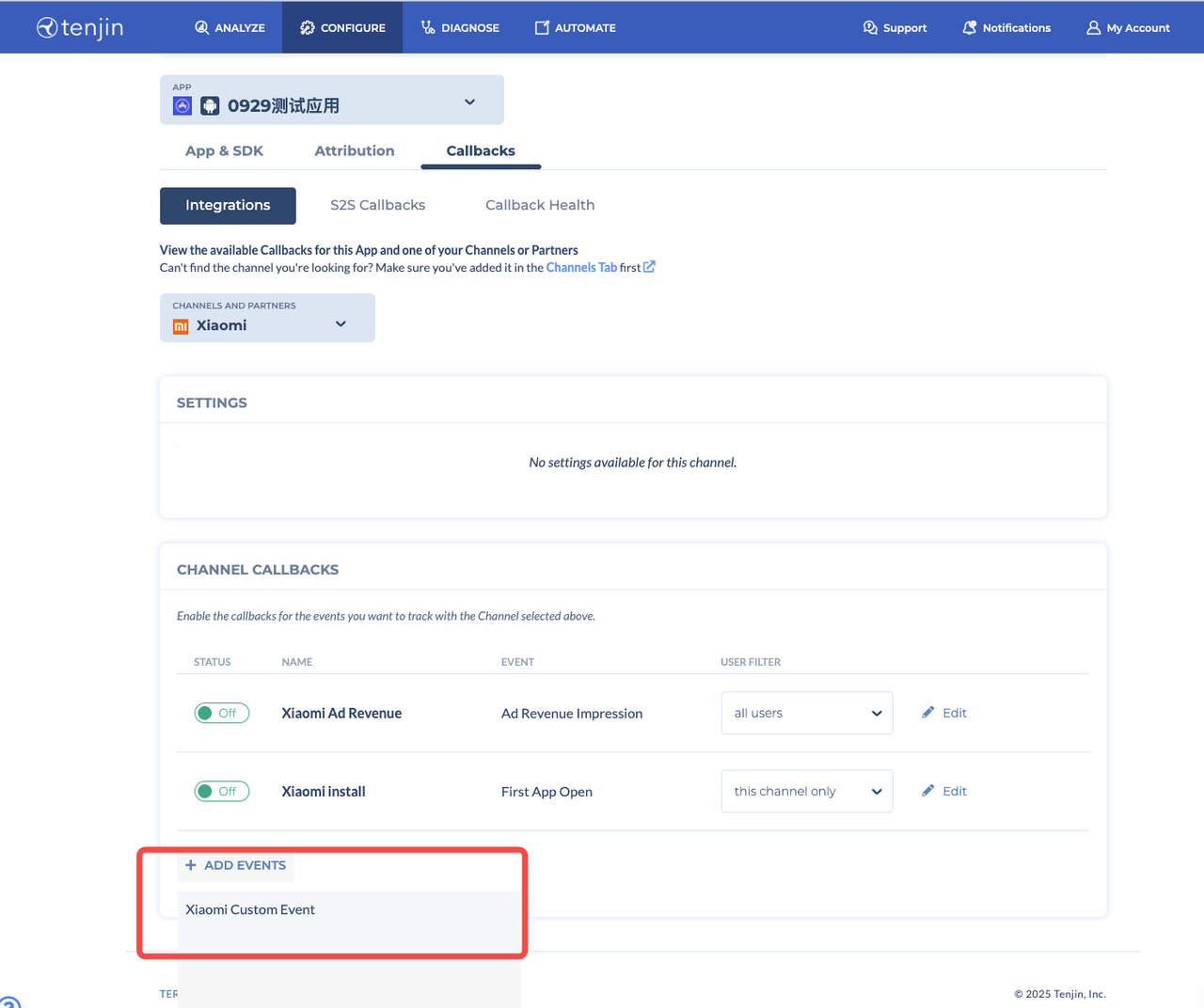
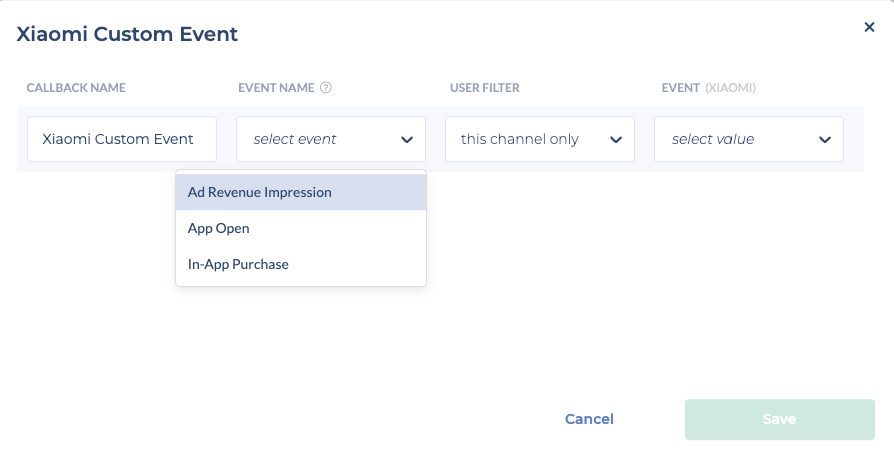
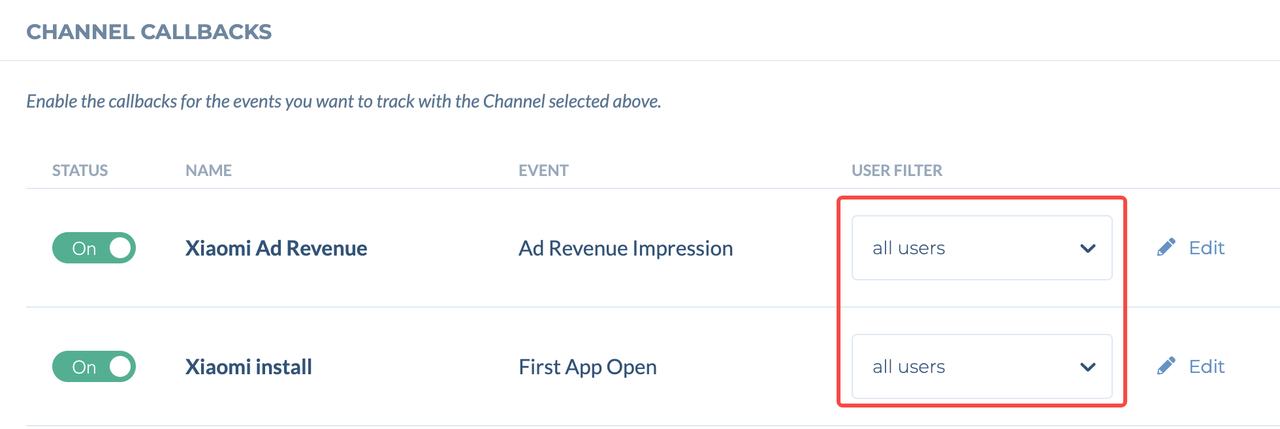
- Events transmitted by the SDK will appear in the second column. Only three default events are displayed here. The User Filter determines whether to send data to all channels, attributed-only, or attributed + organic.
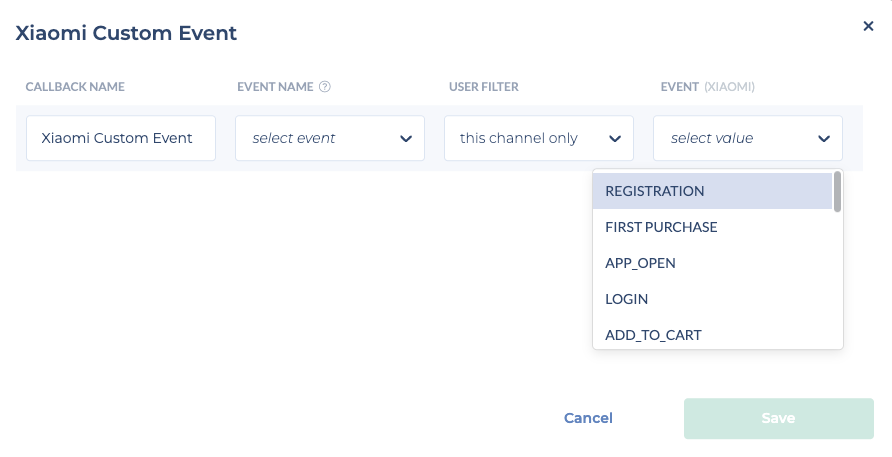
- Under "EVENT (XIAOMI)", select the corresponding in-app event supported by Xiaomi.
- Simply check the relevant boxes in the dropdown list for the events you wish to map to Xiaomi Global. A total of 22 events are available, including 3 customizable events.
- Enable full-channel postback.
In the USER FILTER section, select "all users" to send all postback data to Xiaomi, including attributed data, unattributed data, and organic data, to facilitate campaign optimization.
# 5. Appmetrica
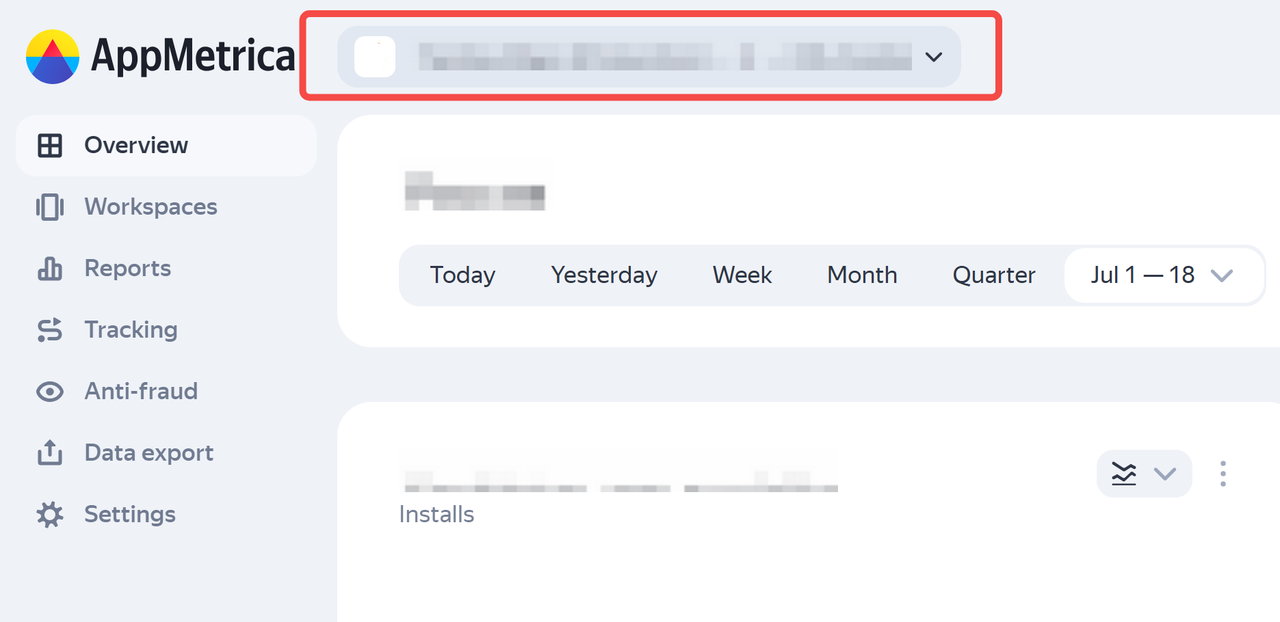
# Step 1: Log in and select your app
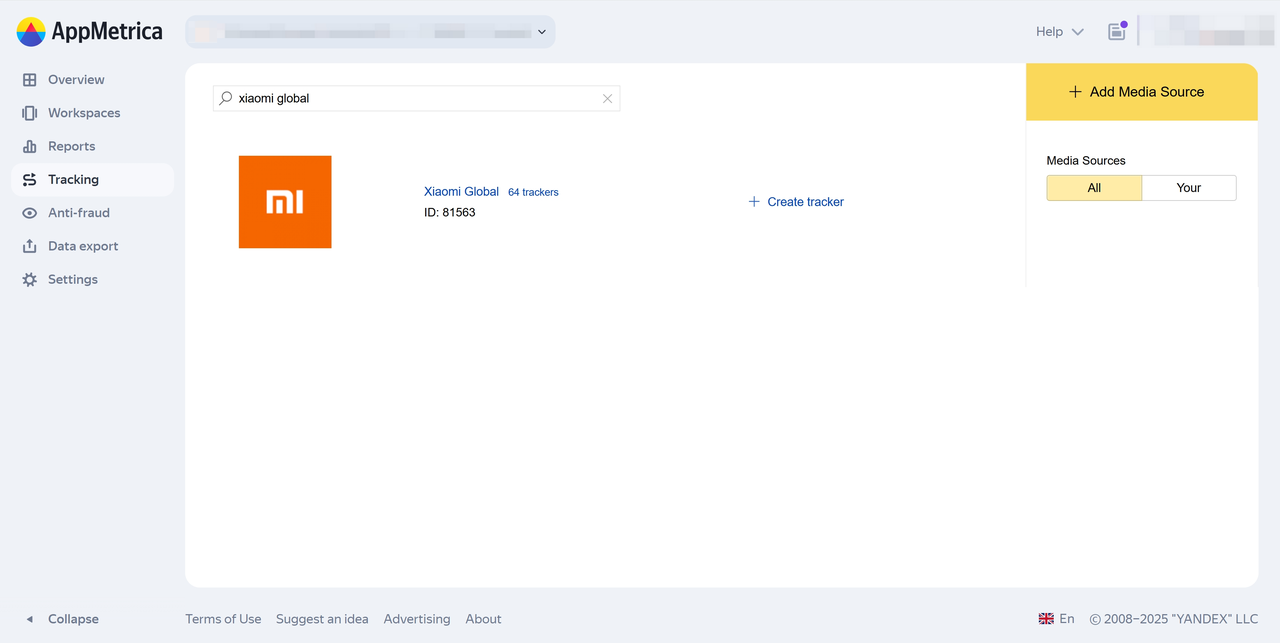
# Step 2: Locate and Add Xiaomi Global to Configure Postbacks
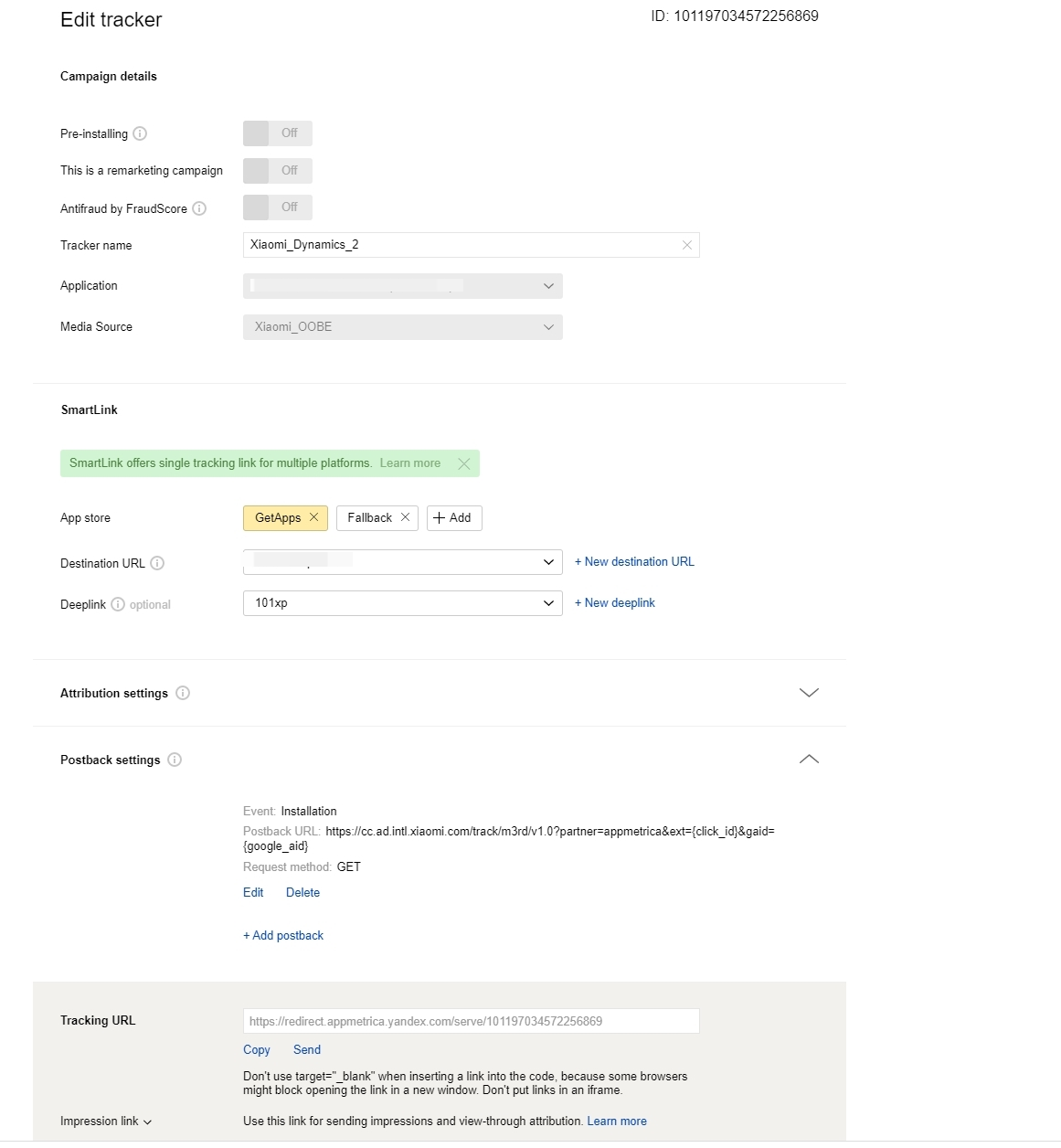
Select "Media sources" in "Tracking" and then search for "Xiaomi Global".
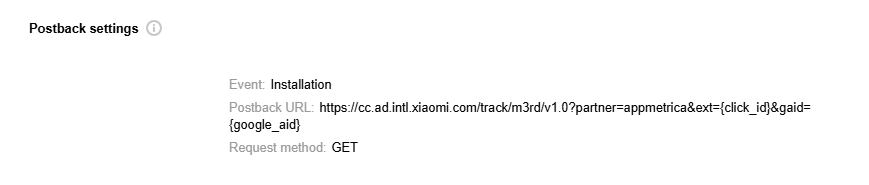
# Step 3: Fill in the Postback URL
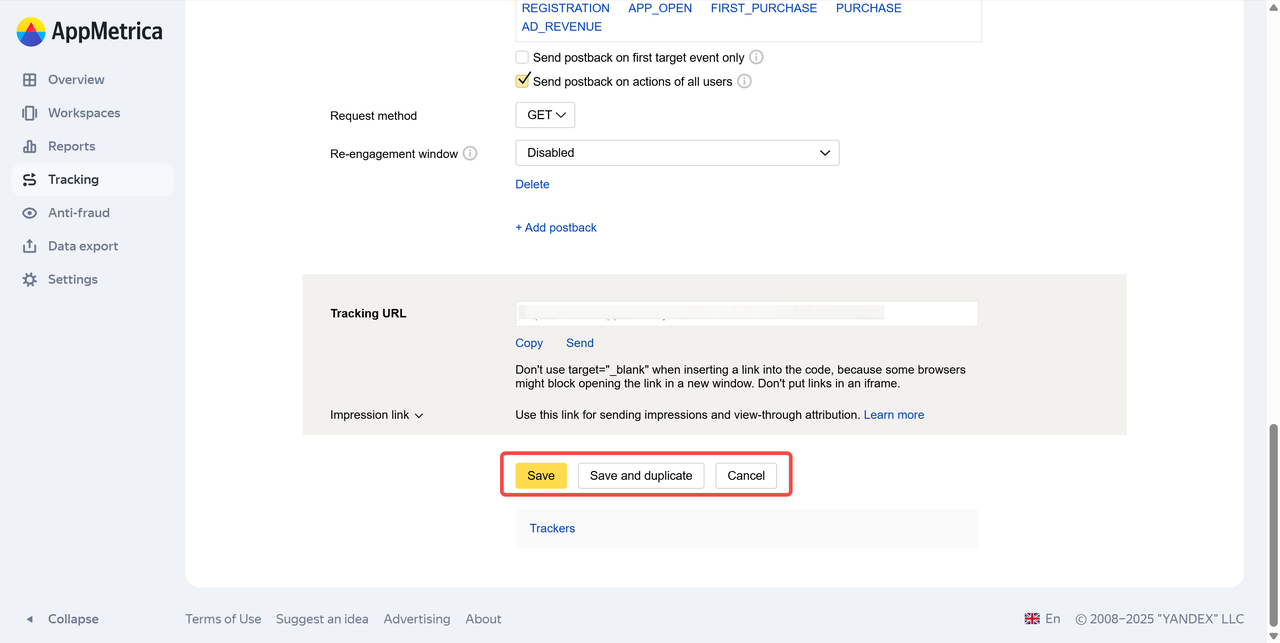
Under "Postback Settings", fill in the "Callback URL" with: https://cc.ad.intl.xiaomi.com/track/m3rd/v1.0?partner=appmetrica&ext={click_id}&gaid={google_aid}, and the system will generate a tracking URL.
# Step 4: In-app event postback configuration
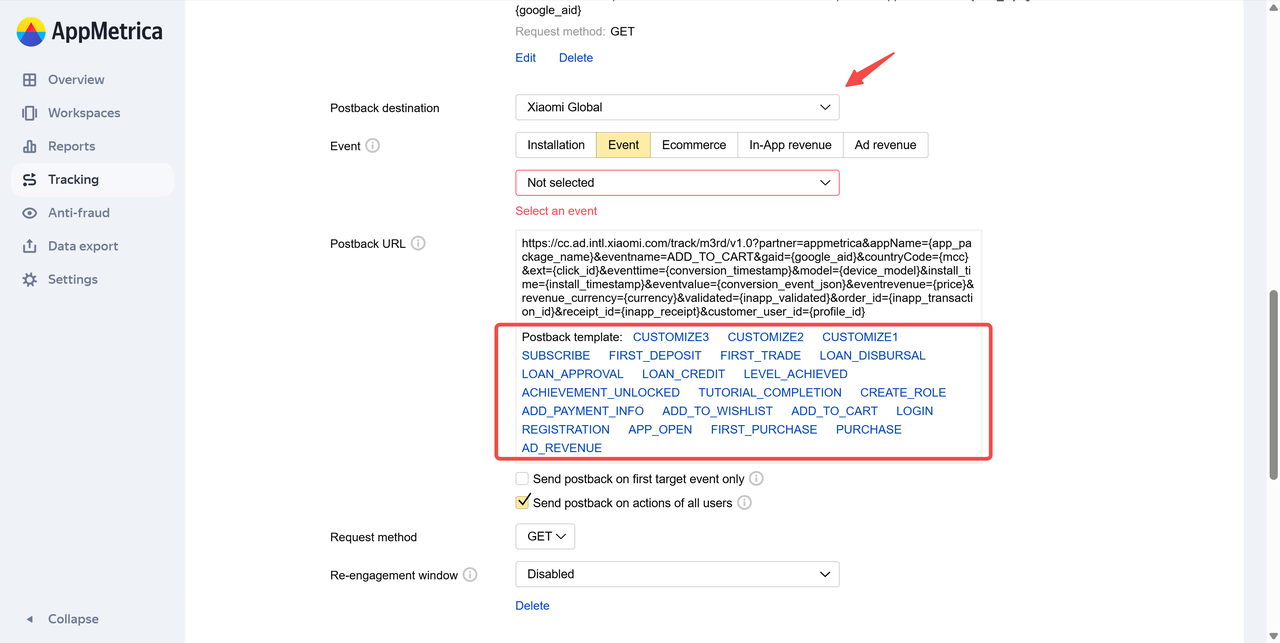
- Select "+Add postback" in "Postback settings"
- For "Postback destination", you need to select "Xiaomi Global" and then choose "EVENT"
- The events in the Postback template are all clickable. Clicking on them will generate the corresponding callback template. The EVENT section will display all events you tracked in Appmetrica. You can generate the corresponding template based on the events you want to send back to Xiaomi Global.
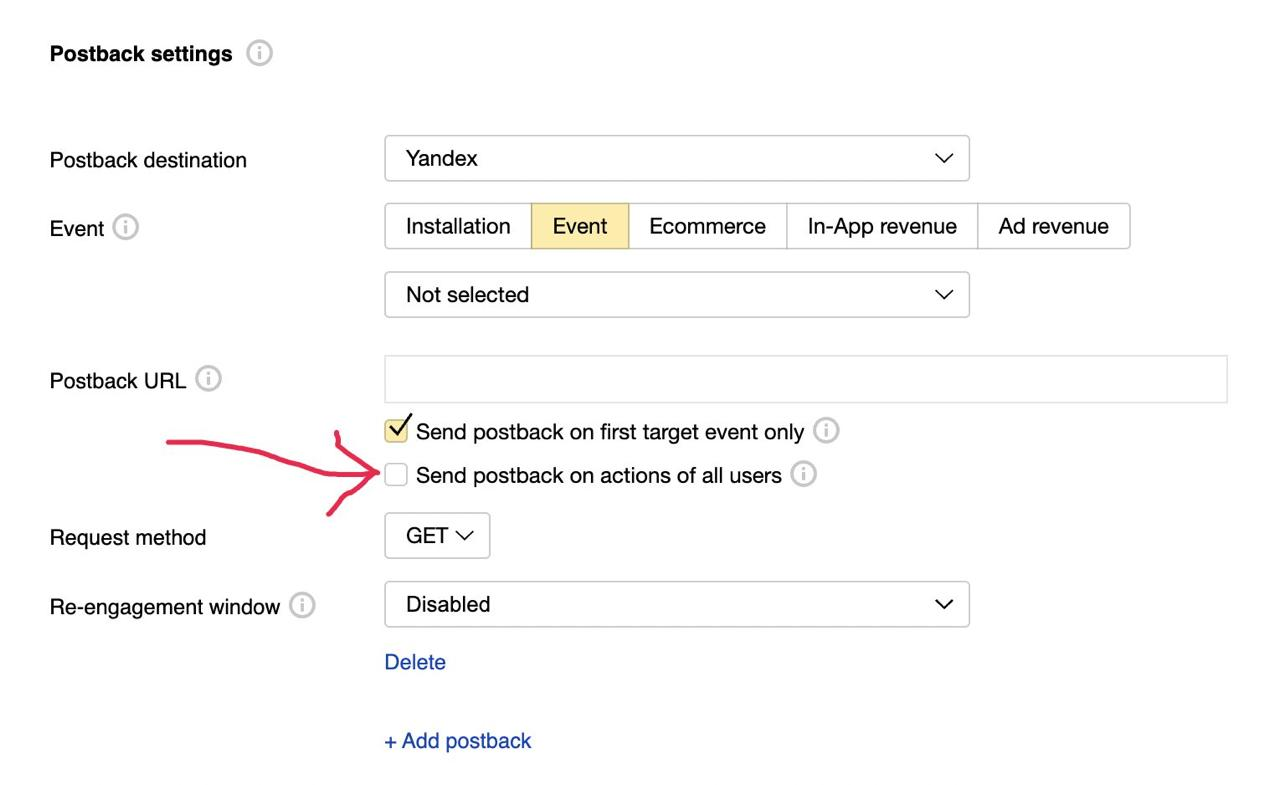
- Enable full-channel postback.
We recommend that you select "all users" to send all postback data to Xiaomi, including attributed data, unattributed data, and organic data, to facilitate campaign optimization.
# Step 5: Ad revenue callback configuration
For advertisers of game products, we recommend that you return the IAA ad monetization event. Select Ad revenue in Event, generate the corresponding postback URL, and return it to Xiaomi Global.
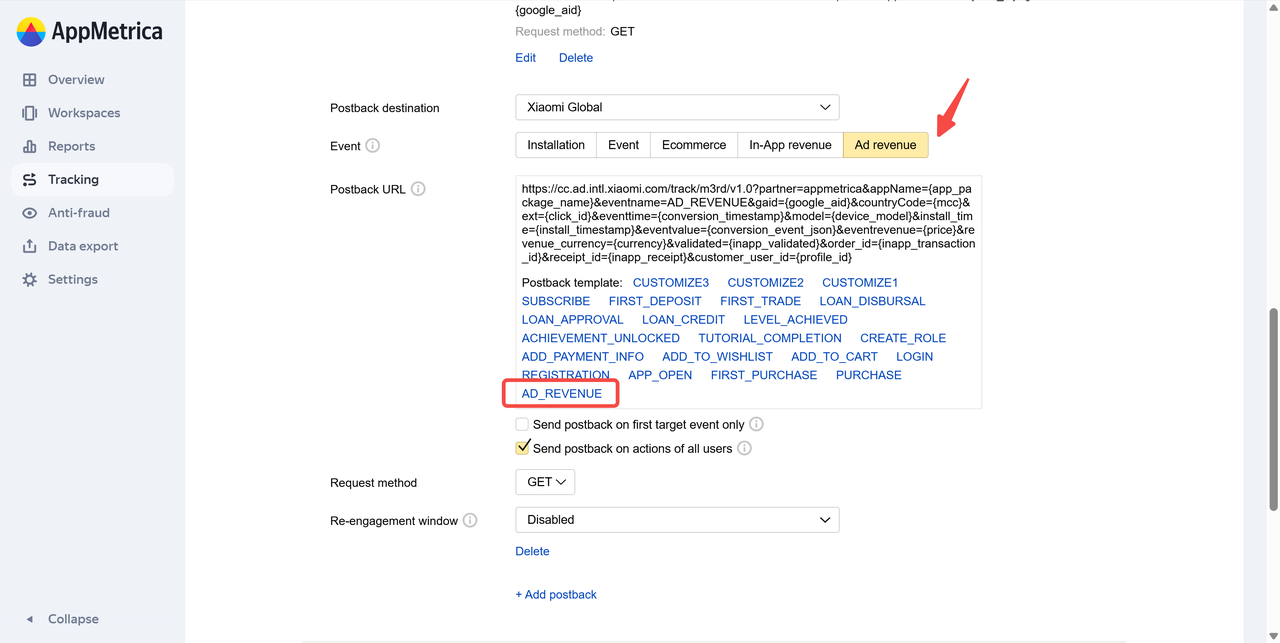
After configuring all events, click Save to save the settings.
# 6. Branch
# Step 1: Log in and select your app
Log in to the Branch platform. Click on "CONFIGURE" -- "Ad Partners".
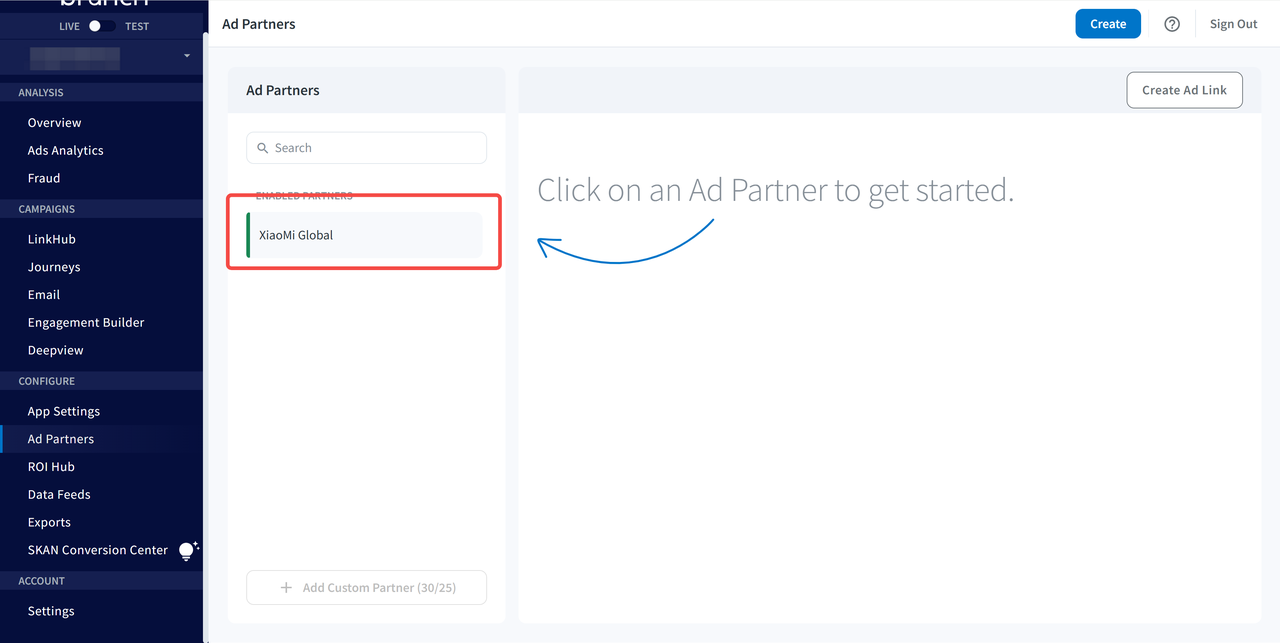
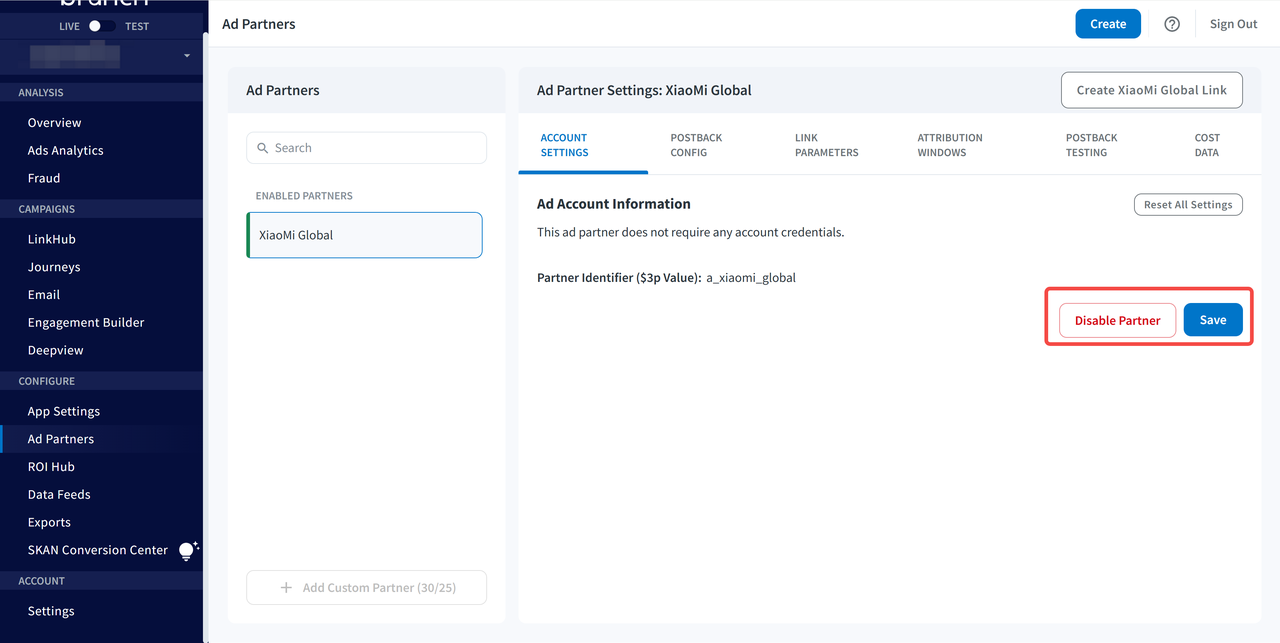
# Step 2: Find and select XiaoMi Global to configure the callback settings.
Search for "XiaoMi Global" in the advertising partners section on the left, then click the "Save" button in the lower right corner.
# Step 3: Add the corresponding callback configuration
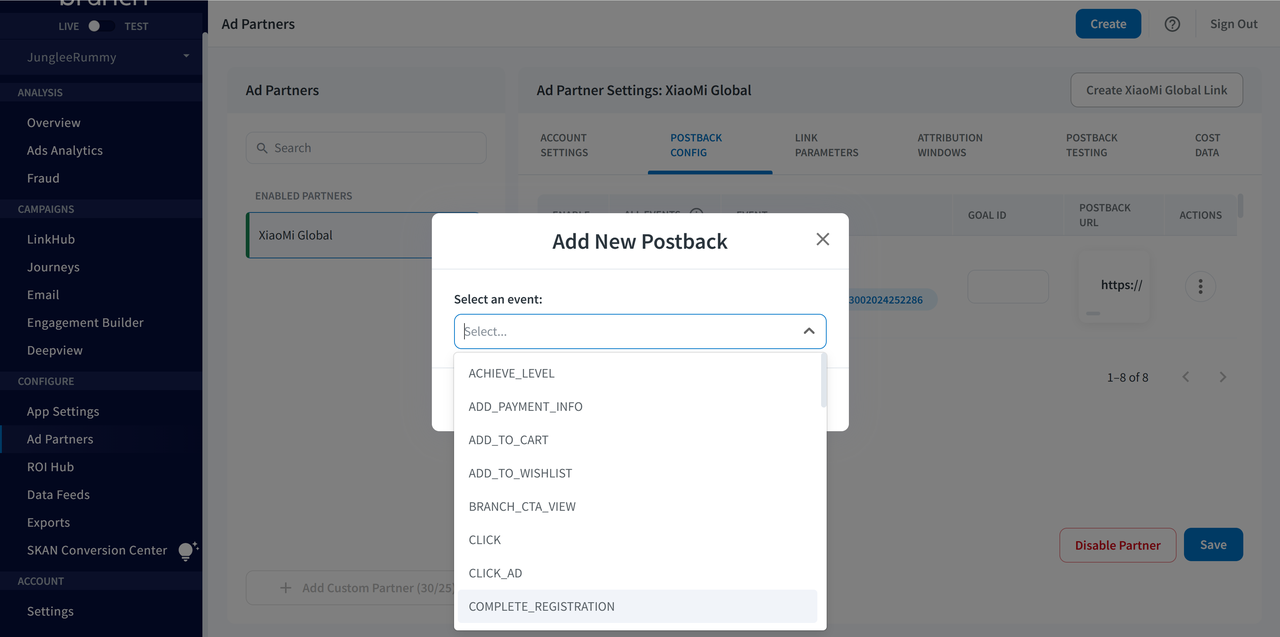
After enabling XiaoMi Global as an advertising partner, click on the "POSTBACK CONFIG" tab. In this tab, you can find all individual callbacks and also add other callback events that you want to forward to XiaoMi Global. If you wish to configure more callbacks, scroll down the screen and click "Add New Postback". Make sure to check all the event boxes for the events you want to enable, then click the "Save" button in the lower right corner to confirm the configuration.
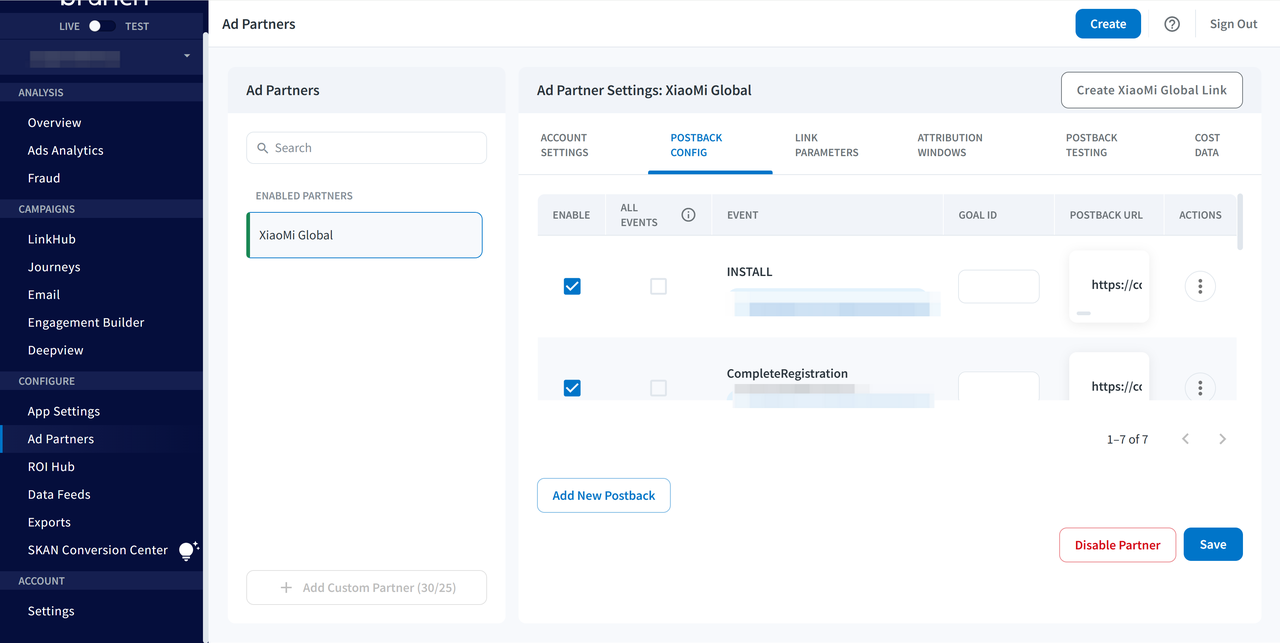
# Step 4: In-app event postback configuration
Click "Add New Postback" and select the corresponding in-app event from the drop-down menu.
# Step 5: Generate tracking links
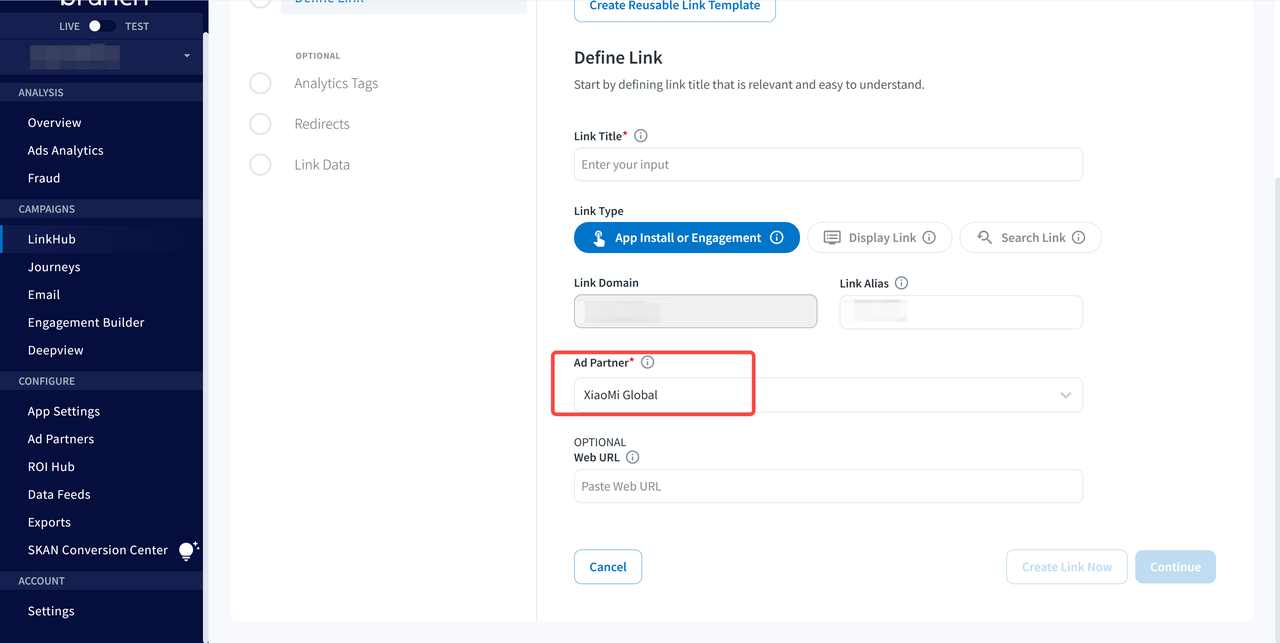
Click "Create XiaoMi Global Link" in the Partner Management window. You will see the following options for ad link formats:
App Install or Engagement
Create Display Link
Create Search Link
In the App Only section, select "App Install or Engagement" and click the "Confirm" button at the bottom of the "Create Ad Link" window.
# 7. Singular
# Step 1: Add a partner
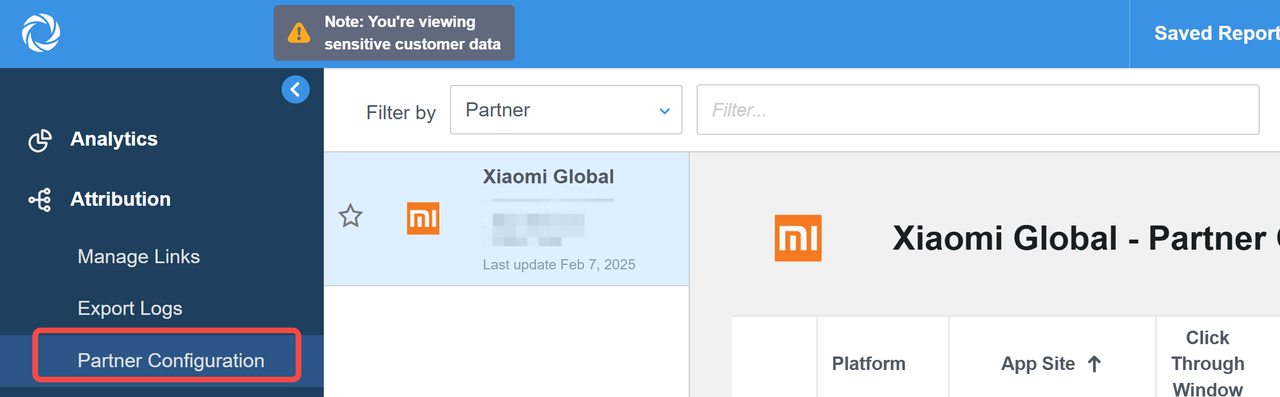
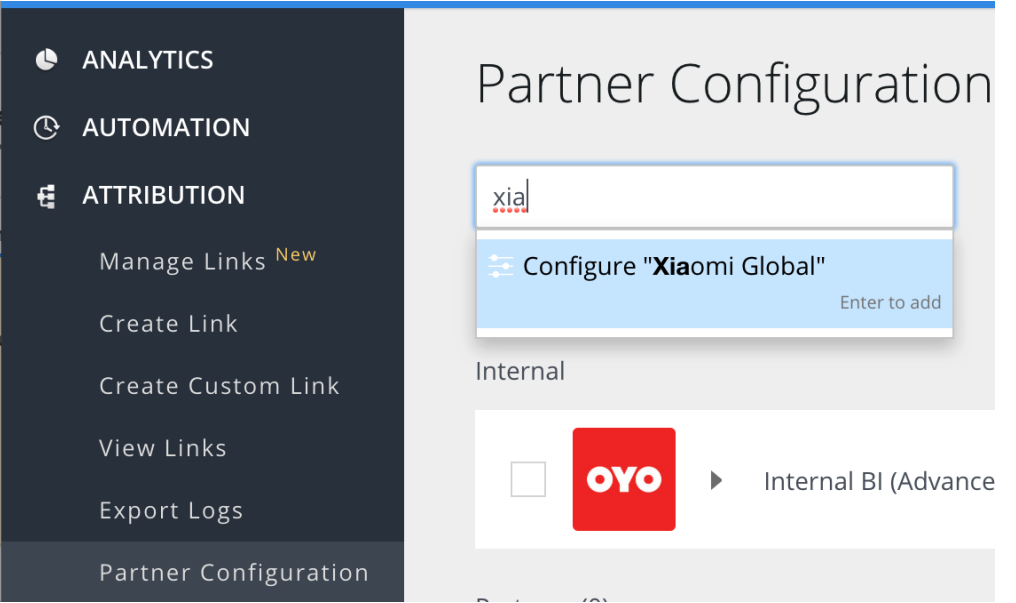
Login to Singular, click Attribution > Partner Configuration > Add a Partner > Select Xiaomi Global
# Step 2: Select the app that you want to configure and send callbacks to Xiaomi Global.
In the pop-up window, select the application name from the "Application" drop-down menu and select the platform from the "Website" drop-down menu.
# Step 3: Specify app-specific attribution settings
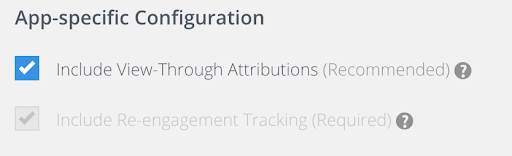
- Direct - causation attribution: Select this checkbox to allow Singular to send callbacks related to view - through attribution (impression) conversions.
- Click - through attribution: Specify the installation time of the advertisement.
- Re - engagement: Use the inactive window.
# Step 4: Lookback window setting
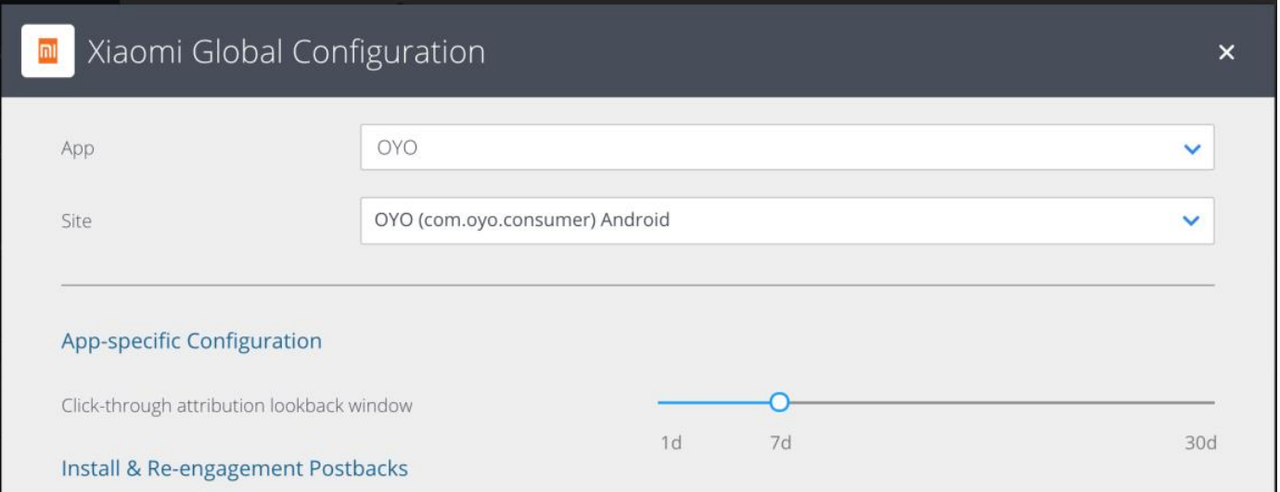
When setting Xiaomi Global as a partner, you may see the following:
Scroll down to the Click-through attribution lookback window and configure the lookback window. It is recommended that you keep the default lookback window setting (7 days).
# Step 5: In-app event postback configuration
- Select whether to send event callbacks to the network. Add events by specifying the "In-app (SDK) event name", "Event name", and whether to include its revenue value (if applicable).
- Click Save. Repeat the above steps for each partner, application, and website you set up.
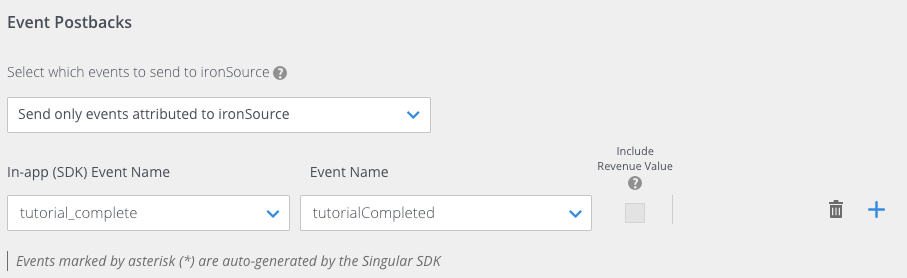
Simply check the relevant boxes in the dropdown list for the events you wish to map to Xiaomi Global. A total of 22 events are available, including 3 customizable events.
# 8. Kochava
# Step 1: Locate your corresponding App
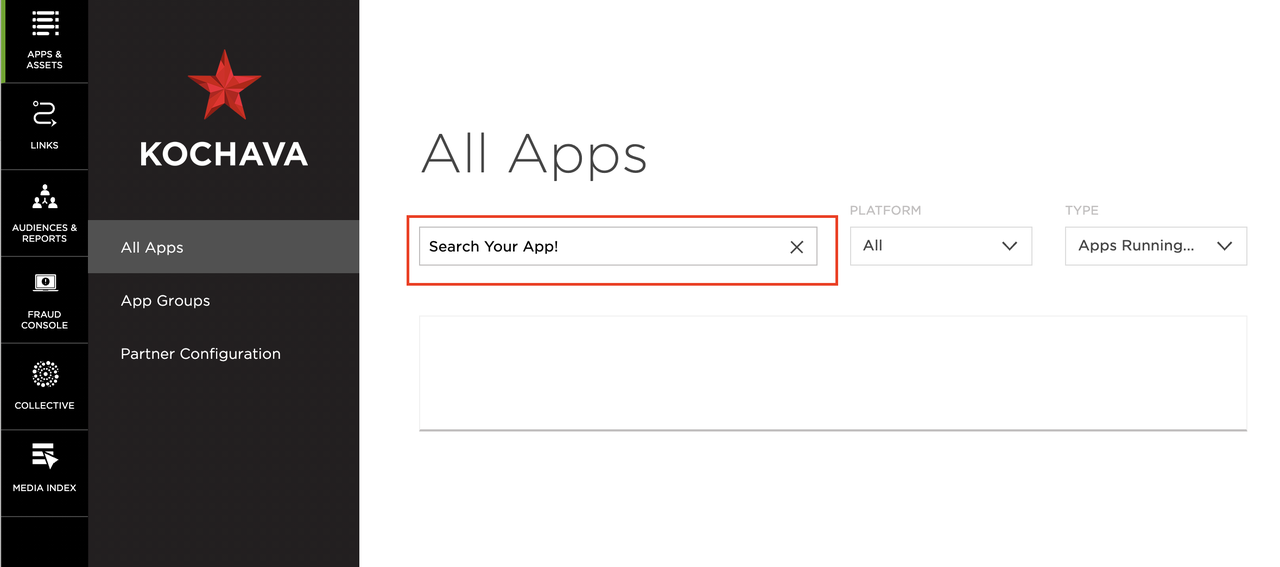
Log in to the Kochava platform. On the left-side menu of the screen, click APPS & ASSETS > ALL APPS. Search for your App name in the search bar to find your App.
# Step 2: Access Partner Configuration
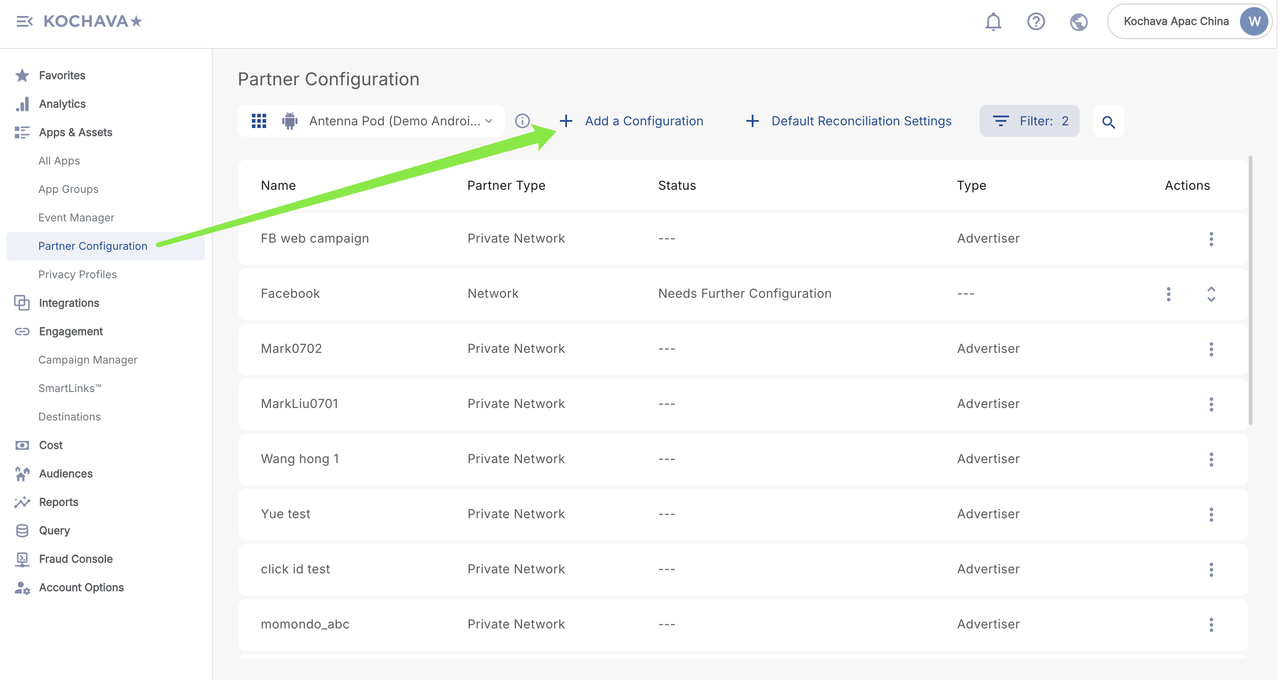
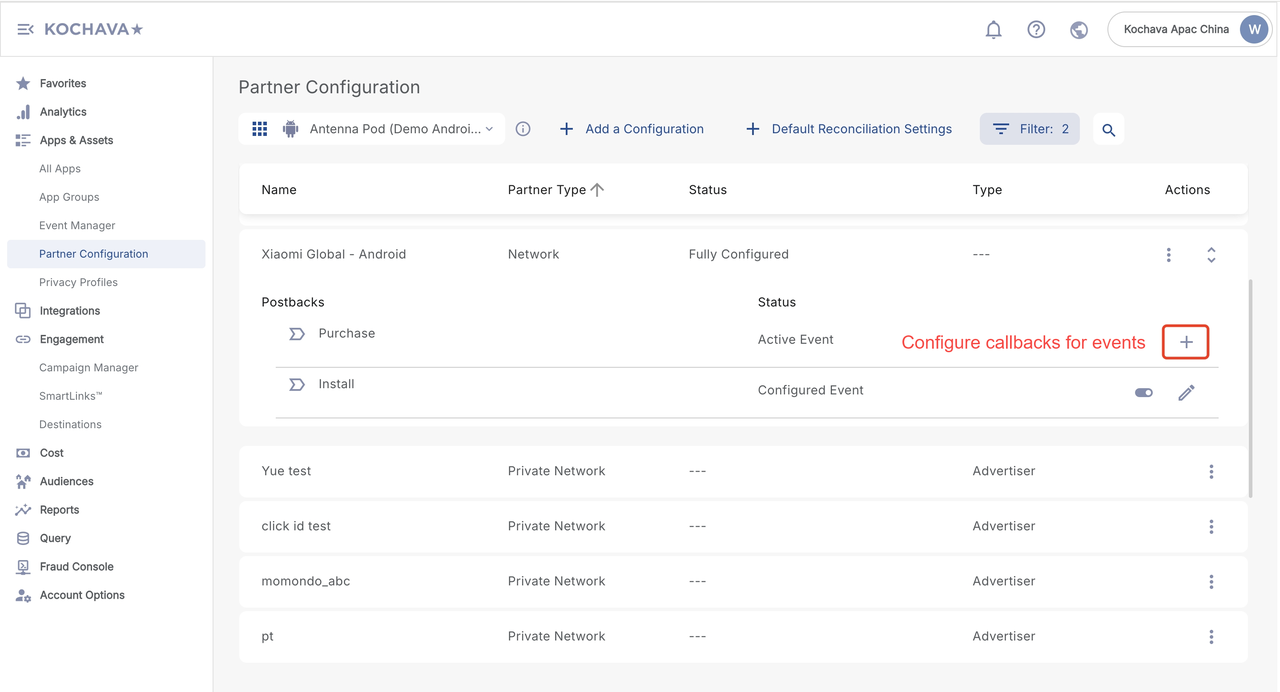
After entering the Kochava page, find "Partner Configuration" in the left sidebar and click "+ Add a Configuration".
# Step 3:In-app event postback configuration
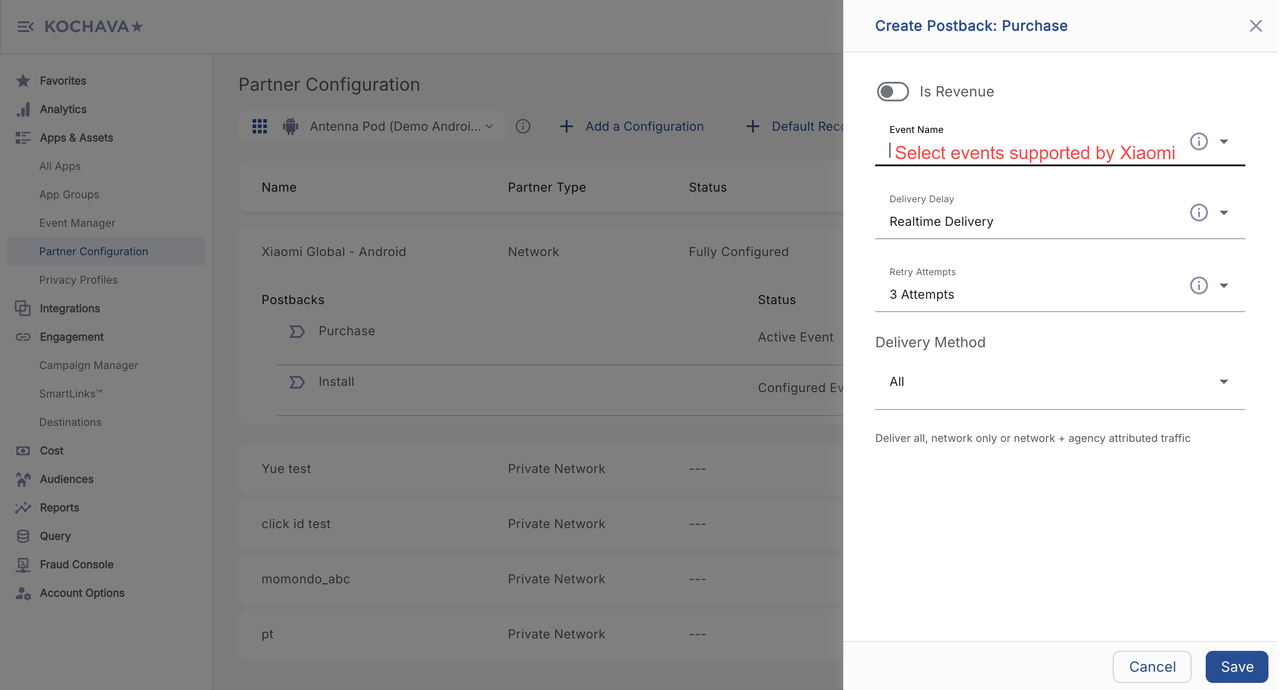
Simply check the relevant boxes in the dropdown list for the events you wish to map to Xiaomi Global. A total of 22 events are available, including 3 customizable events.
# Step 4: Configure the postback URL.
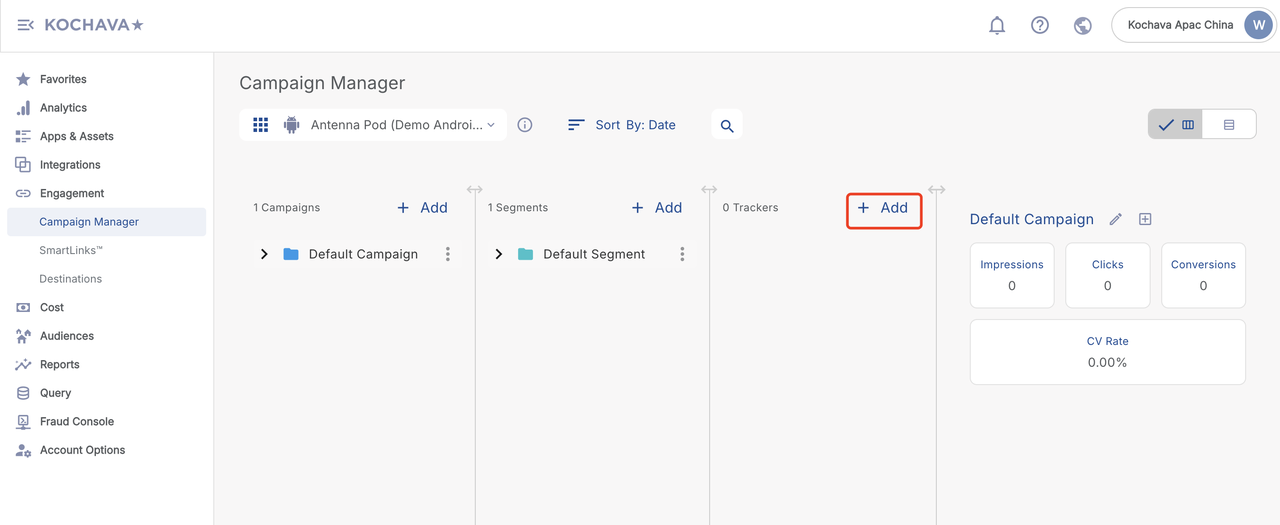
- Enter the ad campaign settings, select the corresponding product, and click "+Add" to create a link.
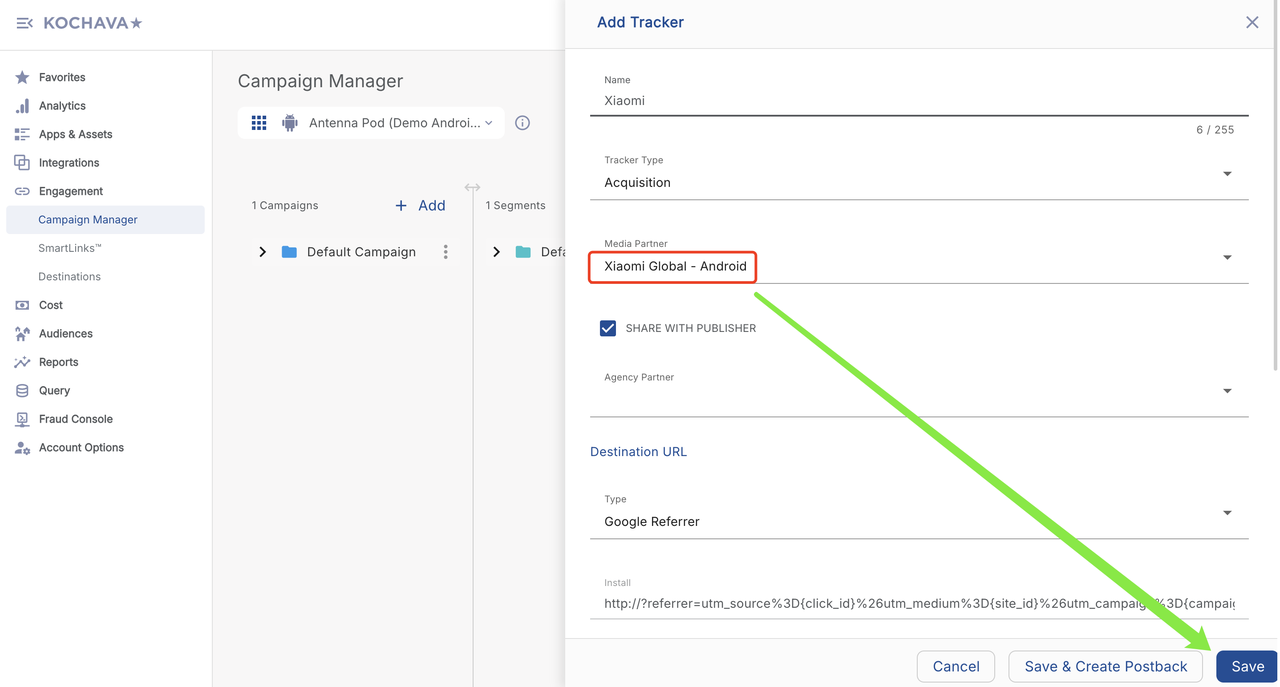
- Select the channel as "Xiaomi Global-Android"
- You can modify the postback URL for existing events.
# 9. MyTracker
# Step 1: Add an advertising partner
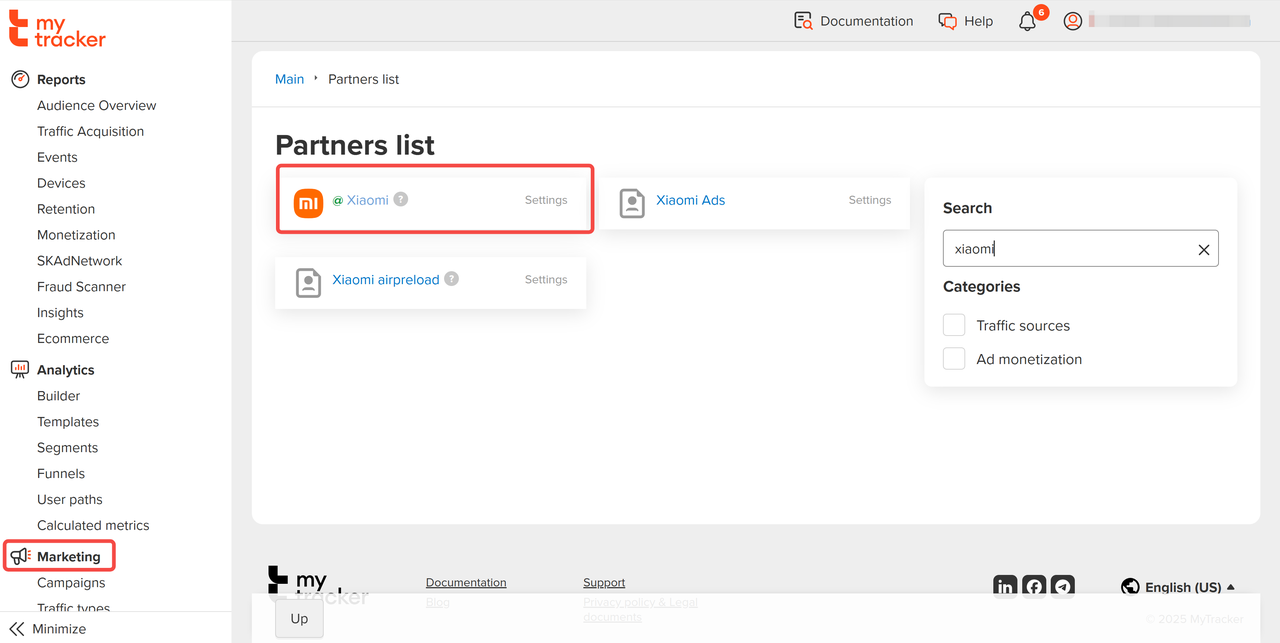
Log in to the MyTracker platform. Click "Marketing" -- "Partners", search for "Xiaomi" in the right sidebar and enter the page.
# Step 2: Select your App to configure the callback
# Step 3: In-app event postback configuration
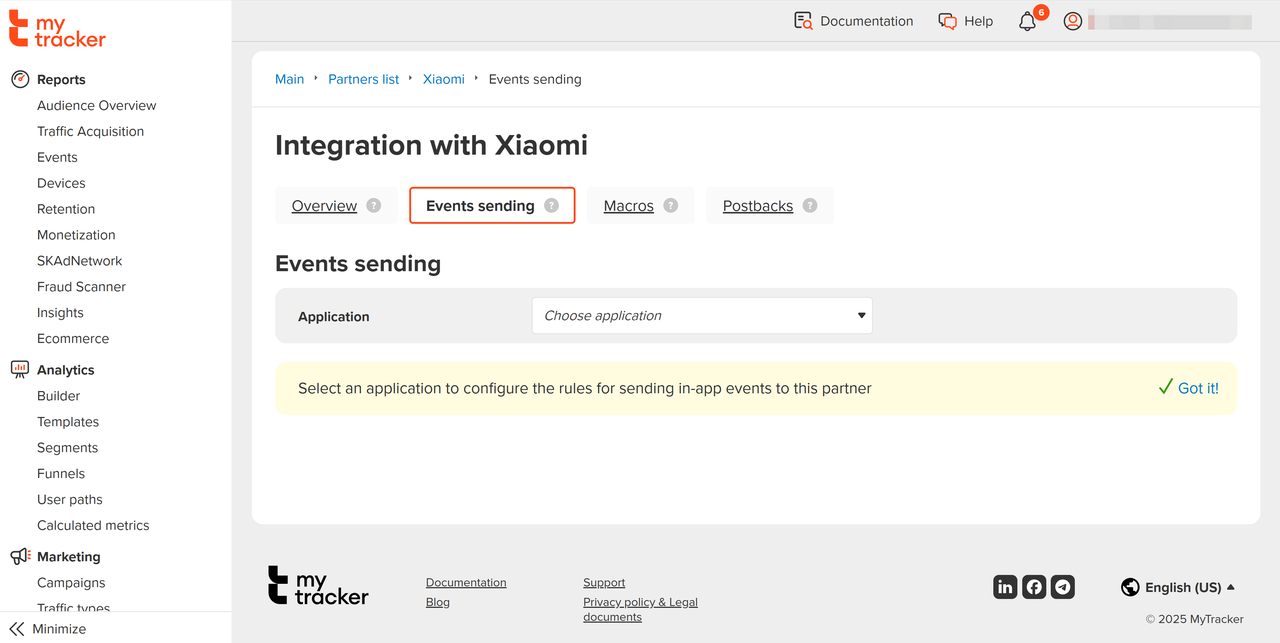
- On the Events sending tab, select the app you need. The list of events that support postback configuration will be loaded into the form.
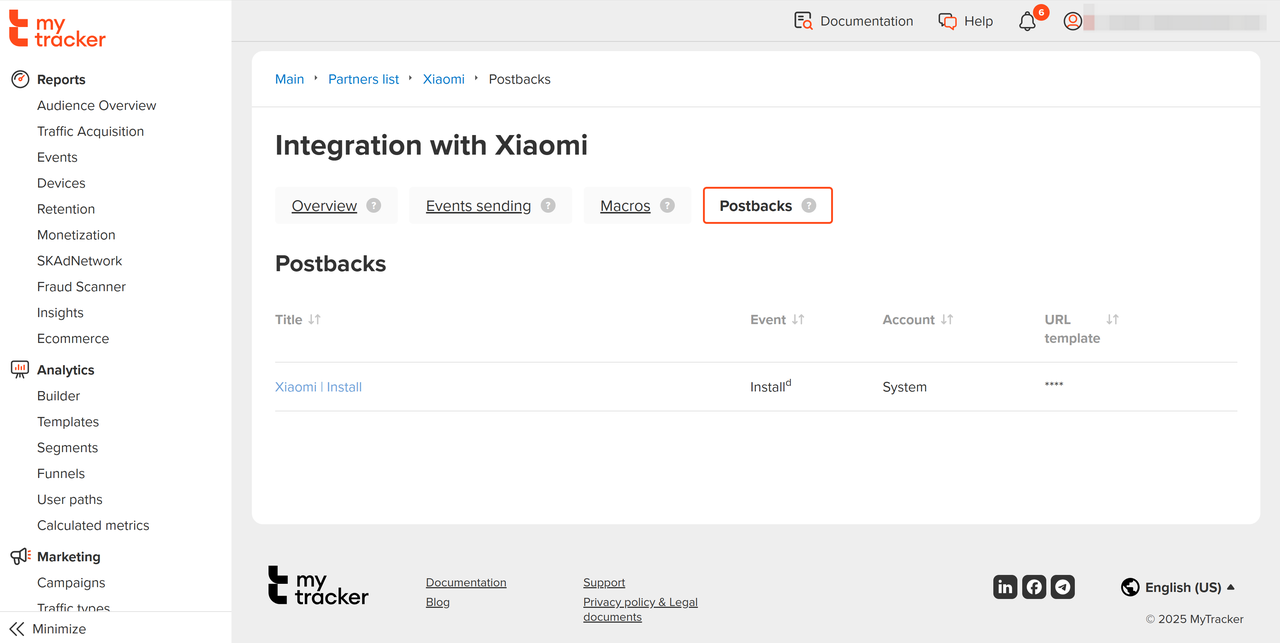
- Specify the event names used by Xiaomi. Currently, a total of 22 in-app events are supported, including 3 custom events. You can directly check the events that need to be mapped to the Xiaomi channel in the drop-down box. You can either select the event names used by the partner from the list, or choose "Custom" and enter any other event names.
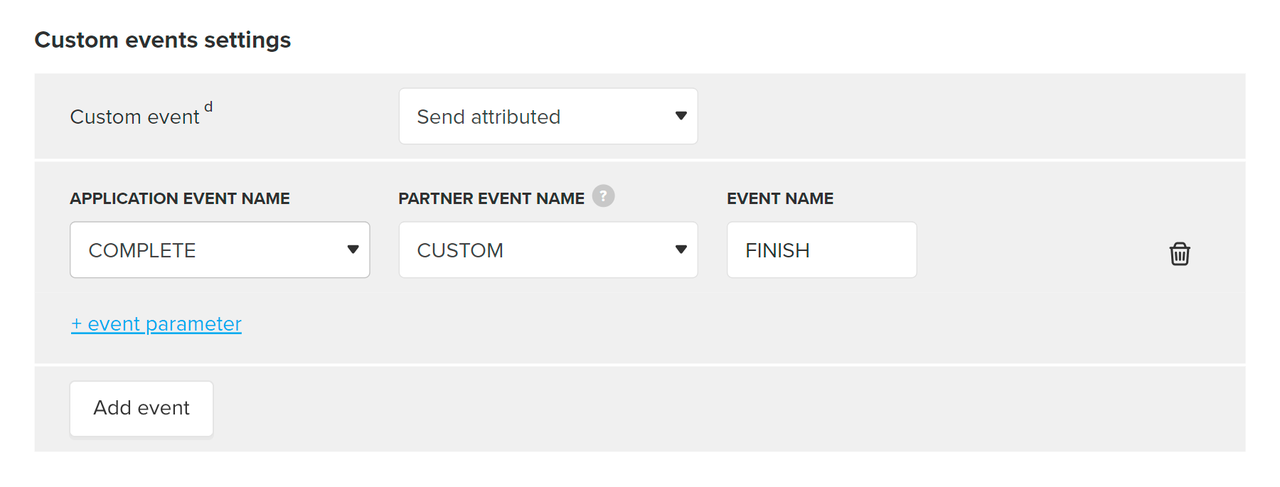
# Step 4: Add event parameters
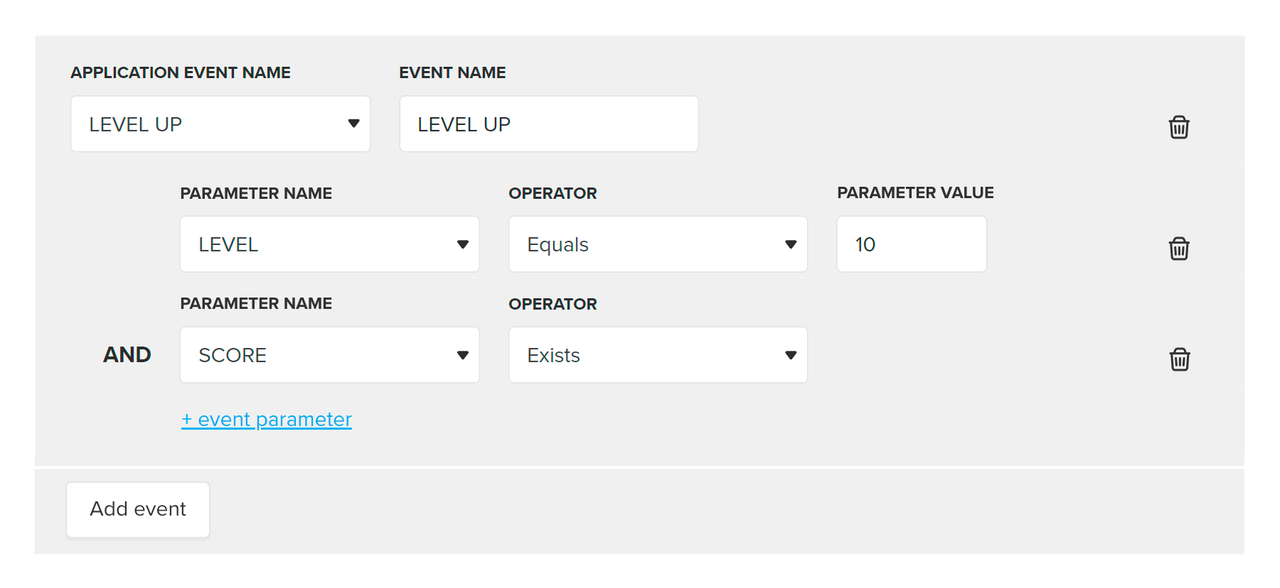
Add +event parameter to clarify the conditions for sending a postback. For example, you can send a "LEVEL_ACHIEVED" postback only if the "level" parameter is "10".
# 10. Airbridge
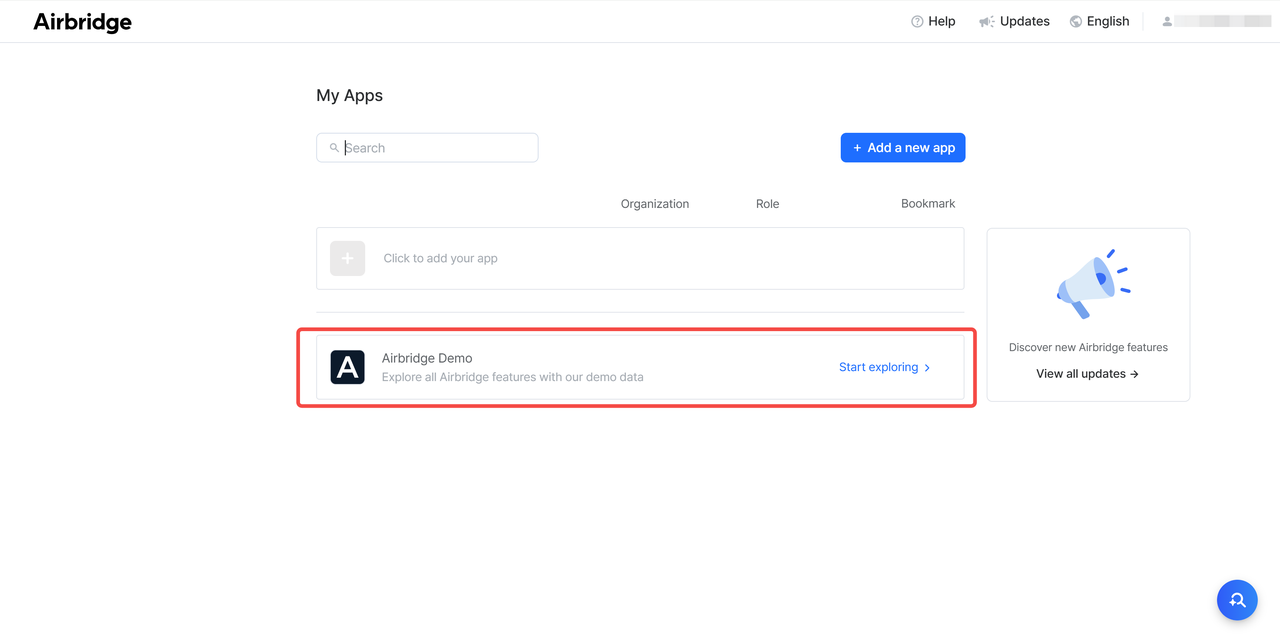
# Step 1: Log in and select your app
# Step 2: Select and access the Xiaomi channel.
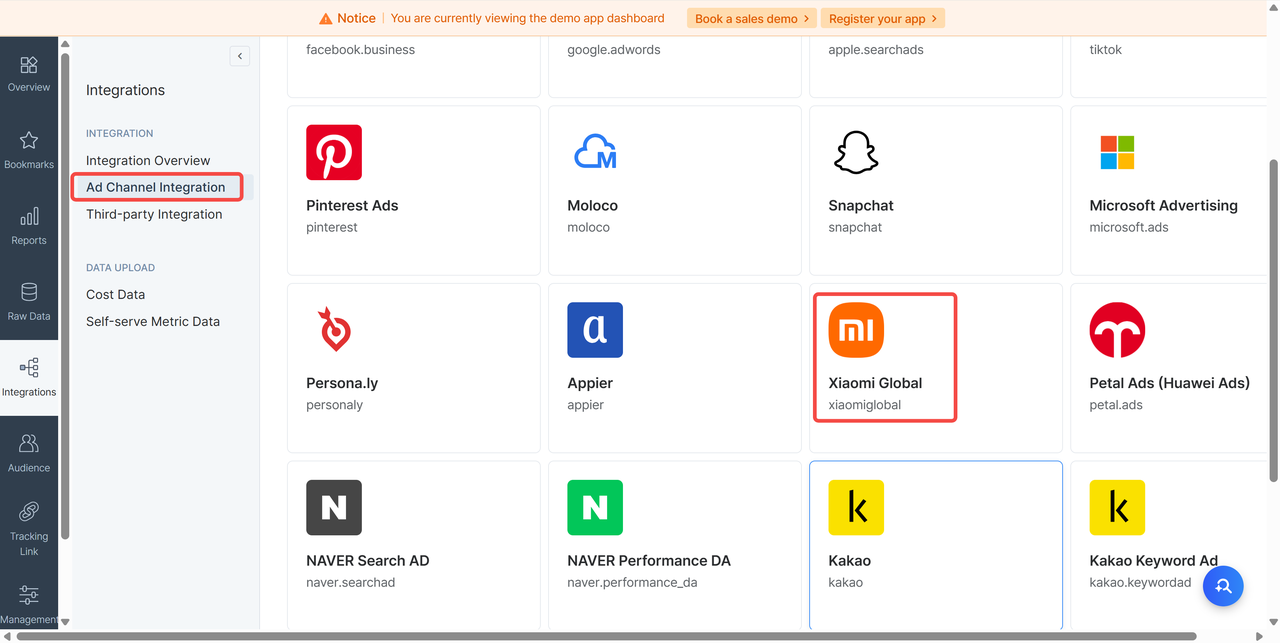
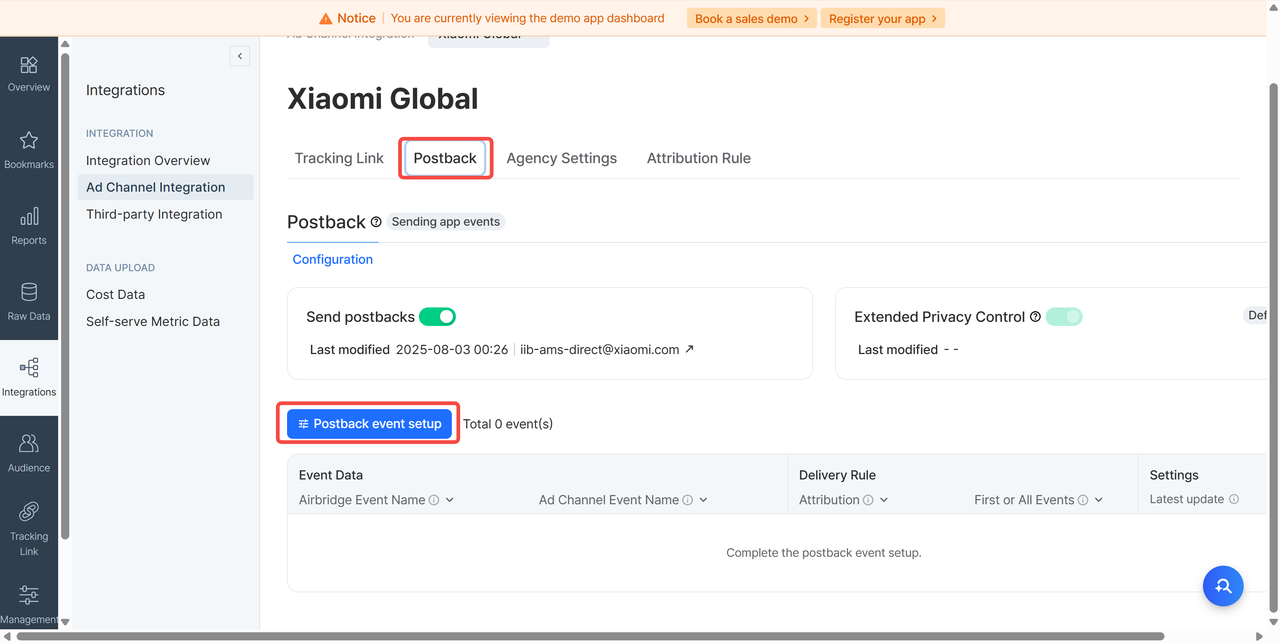
After selecting "Integrations" in the sidebar, choose "Ad Channel Integration", then search for and access Xiaomi Global.
# Step 3: In-app event postback configuration
Turn on the "Send postbacks" switch, and select "Postback event setup" in the "Postback" section to configure in-app event postbacks. Currently, Xiaomi supports a total of 22 in-app events, including 3 custom events. You can directly check the events that need to be mapped to the Xiaomi channel in the drop-down box.
# Step 4: Configure the attribution window
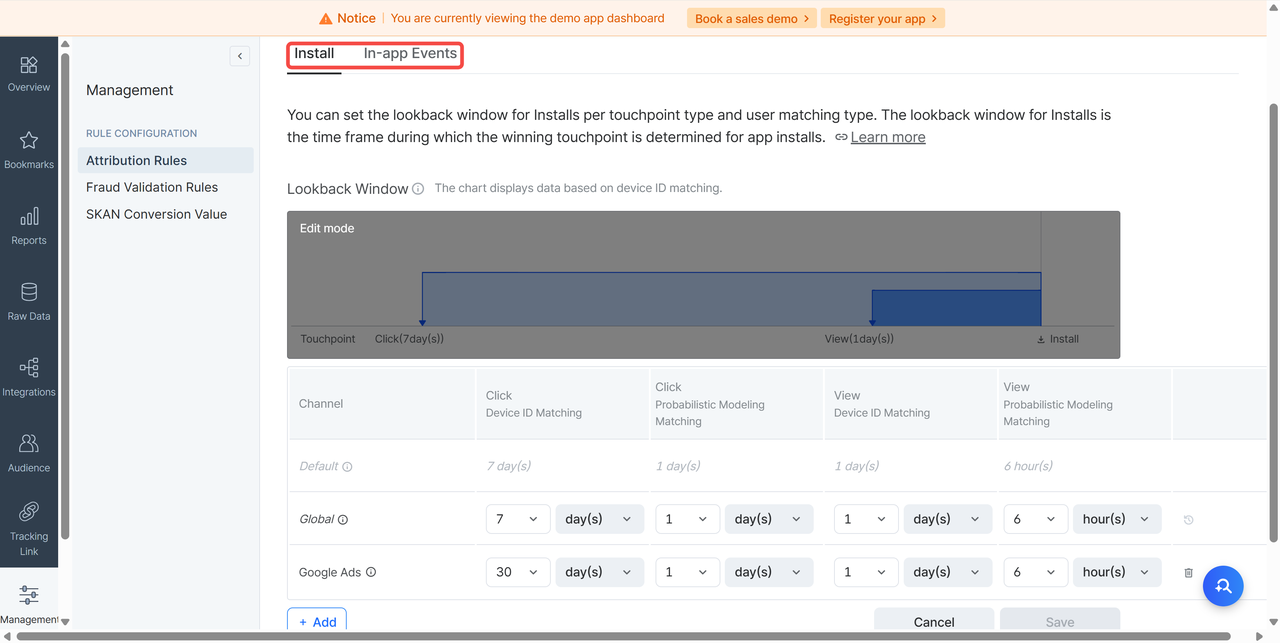
Click "Attribution Rule" to set the attribution window for activations and in-app events in your current postback settings.
# Step 5: Create tracking link
Airbrige currently has a pre-configured basic tracking link. You can add specific fields according to your advertising plan, and copy this tracking link to the "Landingpage URL" in the creative editing page of Mi Ads.